



Vendure
The Cryptonly plugin for Vendure lets your Vendure store accept cryptocurrency payments through Cryptonly’s hosted checkout.
Customers choose Cryptonly at checkout, pay on the Cryptonly payment page and return to your store. The order is placed once Cryptonly confirms the payment through a signed webhook. There is no manual reconciliation.
Setup takes four steps:
- Install the plugin
- Create a Cryptonly payment method in the Dashboard
- Redirect to the payment page from your storefront
- Add a return page that waits for the payment
How the payment flow works
Section titled “How the payment flow works”)%3b%7d%23mermaid-0 rect.note%5bdata-look='neo'%5d%7bstroke:%23aaaa33%3bfill:%23fff5ad%3bfilter:drop-shadow(1px 2px 2px rgba(185%2c 185%2c 185%2c 1))%3b%7d%23mermaid-0 text.actor%26gt%3btspan%7bfill:black%3bstroke:none%3b%7d%23mermaid-0 .actor-line%7bstroke:%239370DB%3b%7d%23mermaid-0 .innerArc%7bstroke-width:1.5%3bstroke-dasharray:none%3b%7d%23mermaid-0 .messageLine0%7bstroke-width:1.5%3bstroke-dasharray:none%3bstroke:%23333%3b%7d%23mermaid-0 .messageLine1%7bstroke-width:1.5%3bstroke-dasharray:2%2c2%3bstroke:%23333%3b%7d%23mermaid-0 %5bid%24='-arrowhead'%5d path%7bfill:%23333%3bstroke:%23333%3b%7d%23mermaid-0 .sequenceNumber%7bfill:white%3b%7d%23mermaid-0 %5bid%24='-sequencenumber'%5d%7bfill:%23333%3b%7d%23mermaid-0 %5bid%24='-crosshead'%5d path%7bfill:%23333%3bstroke:%23333%3b%7d%23mermaid-0 .messageText%7bfill:%23333%3bstroke:none%3b%7d%23mermaid-0 .labelBox%7bstroke:%239370DB%3bfill:%23ECECFF%3bfilter:none%3b%7d%23mermaid-0 .labelText%2c%23mermaid-0 .labelText%26gt%3btspan%7bfill:black%3bstroke:none%3b%7d%23mermaid-0 .loopText%2c%23mermaid-0 .loopText%26gt%3btspan%7bfill:black%3bstroke:none%3b%7d%23mermaid-0 .sectionTitle%2c%23mermaid-0 .sectionTitle%26gt%3btspan%7bfill:black%3bstroke:none%3b%7d%23mermaid-0 .loopLine%7bstroke-width:2px%3bstroke-dasharray:2%2c2%3bstroke:%239370DB%3bfill:%239370DB%3b%7d%23mermaid-0 .note%7bstroke:%23aaaa33%3bfill:%23fff5ad%3b%7d%23mermaid-0 .noteText%2c%23mermaid-0 .noteText%26gt%3btspan%7bfill:black%3bstroke:none%3bfont-weight:normal%3b%7d%23mermaid-0 .activation0%7bfill:%23f4f4f4%3bstroke:%23666%3b%7d%23mermaid-0 .activation1%7bfill:%23f4f4f4%3bstroke:%23666%3b%7d%23mermaid-0 .activation2%7bfill:%23f4f4f4%3bstroke:%23666%3b%7d%23mermaid-0 .actorPopupMenu%7bposition:absolute%3b%7d%23mermaid-0 .actorPopupMenuPanel%7bposition:absolute%3bfill:%23ECECFF%3bbox-shadow:0px 8px 16px 0px rgba(0%2c0%2c0%2c0.2)%3bfilter:drop-shadow(3px 5px 2px rgb(0 0 0 / 0.4))%3b%7d%23mermaid-0 .actor-man circle%2c%23mermaid-0 line%7bfill:%23ECECFF%3bstroke-width:2px%3b%7d%23mermaid-0 g rect.rect%7bfilter:drop-shadow(1px 2px 2px rgba(185%2c 185%2c 185%2c 1))%3bstroke:%239370DB%3b%7d%23mermaid-0 .node .neo-node%7bstroke:%239370DB%3b%7d%23mermaid-0 %5bdata-look='neo'%5d.node rect%2c%23mermaid-0 %5bdata-look='neo'%5d.cluster rect%2c%23mermaid-0 %5bdata-look='neo'%5d.node polygon%7bstroke:%239370DB%3bfilter:drop-shadow(1px 2px 2px rgba(185%2c 185%2c 185%2c 1))%3b%7d%23mermaid-0 %5bdata-look='neo'%5d.swimlane.cluster rect%7bfilter:none%3b%7d%23mermaid-0 %5bdata-look='neo'%5d.node path%7bstroke:%239370DB%3bstroke-width:1px%3b%7d%23mermaid-0 %5bdata-look='neo'%5d.node .outer-path%7bfilter:drop-shadow(1px 2px 2px rgba(185%2c 185%2c 185%2c 1))%3b%7d%23mermaid-0 %5bdata-look='neo'%5d.node .neo-line path%7bstroke:%239370DB%3bfilter:none%3b%7d%23mermaid-0 %5bdata-look='neo'%5d.node circle%7bstroke:%239370DB%3bfilter:drop-shadow(1px 2px 2px rgba(185%2c 185%2c 185%2c 1))%3b%7d%23mermaid-0 %5bdata-look='neo'%5d.node circle .state-start%7bfill:black%3b%7d%23mermaid-0 %5bdata-look='neo'%5d.icon-shape .icon%7bfill:%239370DB%3bfilter:drop-shadow(1px 2px 2px rgba(185%2c 185%2c 185%2c 1))%3b%7d%23mermaid-0 %5bdata-look='neo'%5d.icon-shape .icon-neo path%7bstroke:%239370DB%3bfilter:drop-shadow(1px 2px 2px rgba(185%2c 185%2c 185%2c 1))%3b%7d%23mermaid-0 :root%7b--mermaid-font-family:arial%2csans-serif%3b%7d%3c/style%3e%3cg/%3e%3cdefs%3e%3csymbol id='mermaid-0-computer' width='24' height='24'%3e%3cpath transform='scale(.5)' d='M2 2v13h20v-13h-20zm18 11h-16v-9h16v9zm-10.228 6l.466-1h3.524l.467 1h-4.457zm14.228 3h-24l2-6h2.104l-1.33 4h18.45l-1.297-4h2.073l2 6zm-5-10h-14v-7h14v7z'/%3e%3c/symbol%3e%3c/defs%3e%3cdefs%3e%3csymbol id='mermaid-0-database' fill-rule='evenodd' clip-rule='evenodd'%3e%3cpath transform='scale(.5)' d='M12.258.001l.256.004.255.005.253.008.251.01.249.012.247.015.246.016.242.019.241.02.239.023.236.024.233.027.231.028.229.031.225.032.223.034.22.036.217.038.214.04.211.041.208.043.205.045.201.046.198.048.194.05.191.051.187.053.183.054.18.056.175.057.172.059.168.06.163.061.16.063.155.064.15.066.074.033.073.033.071.034.07.034.069.035.068.035.067.035.066.035.064.036.064.036.062.036.06.036.06.037.058.037.058.037.055.038.055.038.053.038.052.038.051.039.05.039.048.039.047.039.045.04.044.04.043.04.041.04.04.041.039.041.037.041.036.041.034.041.033.042.032.042.03.042.029.042.027.042.026.043.024.043.023.043.021.043.02.043.018.044.017.043.015.044.013.044.012.044.011.045.009.044.007.045.006.045.004.045.002.045.001.045v17l-.001.045-.002.045-.004.045-.006.045-.007.045-.009.044-.011.045-.012.044-.013.044-.015.044-.017.043-.018.044-.02.043-.021.043-.023.043-.024.043-.026.043-.027.042-.029.042-.03.042-.032.042-.033.042-.034.041-.036.041-.037.041-.039.041-.04.041-.041.04-.043.04-.044.04-.045.04-.047.039-.048.039-.05.039-.051.039-.052.038-.053.038-.055.038-.055.038-.058.037-.058.037-.06.037-.06.036-.062.036-.064.036-.064.036-.066.035-.067.035-.068.035-.069.035-.07.034-.071.034-.073.033-.074.033-.15.066-.155.064-.16.063-.163.061-.168.06-.172.059-.175.057-.18.056-.183.054-.187.053-.191.051-.194.05-.198.048-.201.046-.205.045-.208.043-.211.041-.214.04-.217.038-.22.036-.223.034-.225.032-.229.031-.231.028-.233.027-.236.024-.239.023-.241.02-.242.019-.246.016-.247.015-.249.012-.251.01-.253.008-.255.005-.256.004-.258.001-.258-.001-.256-.004-.255-.005-.253-.008-.251-.01-.249-.012-.247-.015-.245-.016-.243-.019-.241-.02-.238-.023-.236-.024-.234-.027-.231-.028-.228-.031-.226-.032-.223-.034-.22-.036-.217-.038-.214-.04-.211-.041-.208-.043-.204-.045-.201-.046-.198-.048-.195-.05-.19-.051-.187-.053-.184-.054-.179-.056-.176-.057-.172-.059-.167-.06-.164-.061-.159-.063-.155-.064-.151-.066-.074-.033-.072-.033-.072-.034-.07-.034-.069-.035-.068-.035-.067-.035-.066-.035-.064-.036-.063-.036-.062-.036-.061-.036-.06-.037-.058-.037-.057-.037-.056-.038-.055-.038-.053-.038-.052-.038-.051-.039-.049-.039-.049-.039-.046-.039-.046-.04-.044-.04-.043-.04-.041-.04-.04-.041-.039-.041-.037-.041-.036-.041-.034-.041-.033-.042-.032-.042-.03-.042-.029-.042-.027-.042-.026-.043-.024-.043-.023-.043-.021-.043-.02-.043-.018-.044-.017-.043-.015-.044-.013-.044-.012-.044-.011-.045-.009-.044-.007-.045-.006-.045-.004-.045-.002-.045-.001-.045v-17l.001-.045.002-.045.004-.045.006-.045.007-.045.009-.044.011-.045.012-.044.013-.044.015-.044.017-.043.018-.044.02-.043.021-.043.023-.043.024-.043.026-.043.027-.042.029-.042.03-.042.032-.042.033-.042.034-.041.036-.041.037-.041.039-.041.04-.041.041-.04.043-.04.044-.04.046-.04.046-.039.049-.039.049-.039.051-.039.052-.038.053-.038.055-.038.056-.038.057-.037.058-.037.06-.037.061-.036.062-.036.063-.036.064-.036.066-.035.067-.035.068-.035.069-.035.07-.034.072-.034.072-.033.074-.033.151-.066.155-.064.159-.063.164-.061.167-.06.172-.059.176-.057.179-.056.184-.054.187-.053.19-.051.195-.05.198-.048.201-.046.204-.045.208-.043.211-.041.214-.04.217-.038.22-.036.223-.034.226-.032.228-.031.231-.028.234-.027.236-.024.238-.023.241-.02.243-.019.245-.016.247-.015.249-.012.251-.01.253-.008.255-.005.256-.004.258-.001.258.001zm-9.258 20.499v.01l.001.021.003.021.004.022.005.021.006.022.007.022.009.023.01.022.011.023.012.023.013.023.015.023.016.024.017.023.018.024.019.024.021.024.022.025.023.024.024.025.052.049.056.05.061.051.066.051.07.051.075.051.079.052.084.052.088.052.092.052.097.052.102.051.105.052.11.052.114.051.119.051.123.051.127.05.131.05.135.05.139.048.144.049.147.047.152.047.155.047.16.045.163.045.167.043.171.043.176.041.178.041.183.039.187.039.19.037.194.035.197.035.202.033.204.031.209.03.212.029.216.027.219.025.222.024.226.021.23.02.233.018.236.016.24.015.243.012.246.01.249.008.253.005.256.004.259.001.26-.001.257-.004.254-.005.25-.008.247-.011.244-.012.241-.014.237-.016.233-.018.231-.021.226-.021.224-.024.22-.026.216-.027.212-.028.21-.031.205-.031.202-.034.198-.034.194-.036.191-.037.187-.039.183-.04.179-.04.175-.042.172-.043.168-.044.163-.045.16-.046.155-.046.152-.047.148-.048.143-.049.139-.049.136-.05.131-.05.126-.05.123-.051.118-.052.114-.051.11-.052.106-.052.101-.052.096-.052.092-.052.088-.053.083-.051.079-.052.074-.052.07-.051.065-.051.06-.051.056-.05.051-.05.023-.024.023-.025.021-.024.02-.024.019-.024.018-.024.017-.024.015-.023.014-.024.013-.023.012-.023.01-.023.01-.022.008-.022.006-.022.006-.022.004-.022.004-.021.001-.021.001-.021v-4.127l-.077.055-.08.053-.083.054-.085.053-.087.052-.09.052-.093.051-.095.05-.097.05-.1.049-.102.049-.105.048-.106.047-.109.047-.111.046-.114.045-.115.045-.118.044-.12.043-.122.042-.124.042-.126.041-.128.04-.13.04-.132.038-.134.038-.135.037-.138.037-.139.035-.142.035-.143.034-.144.033-.147.032-.148.031-.15.03-.151.03-.153.029-.154.027-.156.027-.158.026-.159.025-.161.024-.162.023-.163.022-.165.021-.166.02-.167.019-.169.018-.169.017-.171.016-.173.015-.173.014-.175.013-.175.012-.177.011-.178.01-.179.008-.179.008-.181.006-.182.005-.182.004-.184.003-.184.002h-.37l-.184-.002-.184-.003-.182-.004-.182-.005-.181-.006-.179-.008-.179-.008-.178-.01-.176-.011-.176-.012-.175-.013-.173-.014-.172-.015-.171-.016-.17-.017-.169-.018-.167-.019-.166-.02-.165-.021-.163-.022-.162-.023-.161-.024-.159-.025-.157-.026-.156-.027-.155-.027-.153-.029-.151-.03-.15-.03-.148-.031-.146-.032-.145-.033-.143-.034-.141-.035-.14-.035-.137-.037-.136-.037-.134-.038-.132-.038-.13-.04-.128-.04-.126-.041-.124-.042-.122-.042-.12-.044-.117-.043-.116-.045-.113-.045-.112-.046-.109-.047-.106-.047-.105-.048-.102-.049-.1-.049-.097-.05-.095-.05-.093-.052-.09-.051-.087-.052-.085-.053-.083-.054-.08-.054-.077-.054v4.127zm0-5.654v.011l.001.021.003.021.004.021.005.022.006.022.007.022.009.022.01.022.011.023.012.023.013.023.015.024.016.023.017.024.018.024.019.024.021.024.022.024.023.025.024.024.052.05.056.05.061.05.066.051.07.051.075.052.079.051.084.052.088.052.092.052.097.052.102.052.105.052.11.051.114.051.119.052.123.05.127.051.131.05.135.049.139.049.144.048.147.048.152.047.155.046.16.045.163.045.167.044.171.042.176.042.178.04.183.04.187.038.19.037.194.036.197.034.202.033.204.032.209.03.212.028.216.027.219.025.222.024.226.022.23.02.233.018.236.016.24.014.243.012.246.01.249.008.253.006.256.003.259.001.26-.001.257-.003.254-.006.25-.008.247-.01.244-.012.241-.015.237-.016.233-.018.231-.02.226-.022.224-.024.22-.025.216-.027.212-.029.21-.03.205-.032.202-.033.198-.035.194-.036.191-.037.187-.039.183-.039.179-.041.175-.042.172-.043.168-.044.163-.045.16-.045.155-.047.152-.047.148-.048.143-.048.139-.05.136-.049.131-.05.126-.051.123-.051.118-.051.114-.052.11-.052.106-.052.101-.052.096-.052.092-.052.088-.052.083-.052.079-.052.074-.051.07-.052.065-.051.06-.05.056-.051.051-.049.023-.025.023-.024.021-.025.02-.024.019-.024.018-.024.017-.024.015-.023.014-.023.013-.024.012-.022.01-.023.01-.023.008-.022.006-.022.006-.022.004-.021.004-.022.001-.021.001-.021v-4.139l-.077.054-.08.054-.083.054-.085.052-.087.053-.09.051-.093.051-.095.051-.097.05-.1.049-.102.049-.105.048-.106.047-.109.047-.111.046-.114.045-.115.044-.118.044-.12.044-.122.042-.124.042-.126.041-.128.04-.13.039-.132.039-.134.038-.135.037-.138.036-.139.036-.142.035-.143.033-.144.033-.147.033-.148.031-.15.03-.151.03-.153.028-.154.028-.156.027-.158.026-.159.025-.161.024-.162.023-.163.022-.165.021-.166.02-.167.019-.169.018-.169.017-.171.016-.173.015-.173.014-.175.013-.175.012-.177.011-.178.009-.179.009-.179.007-.181.007-.182.005-.182.004-.184.003-.184.002h-.37l-.184-.002-.184-.003-.182-.004-.182-.005-.181-.007-.179-.007-.179-.009-.178-.009-.176-.011-.176-.012-.175-.013-.173-.014-.172-.015-.171-.016-.17-.017-.169-.018-.167-.019-.166-.02-.165-.021-.163-.022-.162-.023-.161-.024-.159-.025-.157-.026-.156-.027-.155-.028-.153-.028-.151-.03-.15-.03-.148-.031-.146-.033-.145-.033-.143-.033-.141-.035-.14-.036-.137-.036-.136-.037-.134-.038-.132-.039-.13-.039-.128-.04-.126-.041-.124-.042-.122-.043-.12-.043-.117-.044-.116-.044-.113-.046-.112-.046-.109-.046-.106-.047-.105-.048-.102-.049-.1-.049-.097-.05-.095-.051-.093-.051-.09-.051-.087-.053-.085-.052-.083-.054-.08-.054-.077-.054v4.139zm0-5.666v.011l.001.02.003.022.004.021.005.022.006.021.007.022.009.023.01.022.011.023.012.023.013.023.015.023.016.024.017.024.018.023.019.024.021.025.022.024.023.024.024.025.052.05.056.05.061.05.066.051.07.051.075.052.079.051.084.052.088.052.092.052.097.052.102.052.105.051.11.052.114.051.119.051.123.051.127.05.131.05.135.05.139.049.144.048.147.048.152.047.155.046.16.045.163.045.167.043.171.043.176.042.178.04.183.04.187.038.19.037.194.036.197.034.202.033.204.032.209.03.212.028.216.027.219.025.222.024.226.021.23.02.233.018.236.017.24.014.243.012.246.01.249.008.253.006.256.003.259.001.26-.001.257-.003.254-.006.25-.008.247-.01.244-.013.241-.014.237-.016.233-.018.231-.02.226-.022.224-.024.22-.025.216-.027.212-.029.21-.03.205-.032.202-.033.198-.035.194-.036.191-.037.187-.039.183-.039.179-.041.175-.042.172-.043.168-.044.163-.045.16-.045.155-.047.152-.047.148-.048.143-.049.139-.049.136-.049.131-.051.126-.05.123-.051.118-.052.114-.051.11-.052.106-.052.101-.052.096-.052.092-.052.088-.052.083-.052.079-.052.074-.052.07-.051.065-.051.06-.051.056-.05.051-.049.023-.025.023-.025.021-.024.02-.024.019-.024.018-.024.017-.024.015-.023.014-.024.013-.023.012-.023.01-.022.01-.023.008-.022.006-.022.006-.022.004-.022.004-.021.001-.021.001-.021v-4.153l-.077.054-.08.054-.083.053-.085.053-.087.053-.09.051-.093.051-.095.051-.097.05-.1.049-.102.048-.105.048-.106.048-.109.046-.111.046-.114.046-.115.044-.118.044-.12.043-.122.043-.124.042-.126.041-.128.04-.13.039-.132.039-.134.038-.135.037-.138.036-.139.036-.142.034-.143.034-.144.033-.147.032-.148.032-.15.03-.151.03-.153.028-.154.028-.156.027-.158.026-.159.024-.161.024-.162.023-.163.023-.165.021-.166.02-.167.019-.169.018-.169.017-.171.016-.173.015-.173.014-.175.013-.175.012-.177.01-.178.01-.179.009-.179.007-.181.006-.182.006-.182.004-.184.003-.184.001-.185.001-.185-.001-.184-.001-.184-.003-.182-.004-.182-.006-.181-.006-.179-.007-.179-.009-.178-.01-.176-.01-.176-.012-.175-.013-.173-.014-.172-.015-.171-.016-.17-.017-.169-.018-.167-.019-.166-.02-.165-.021-.163-.023-.162-.023-.161-.024-.159-.024-.157-.026-.156-.027-.155-.028-.153-.028-.151-.03-.15-.03-.148-.032-.146-.032-.145-.033-.143-.034-.141-.034-.14-.036-.137-.036-.136-.037-.134-.038-.132-.039-.13-.039-.128-.041-.126-.041-.124-.041-.122-.043-.12-.043-.117-.044-.116-.044-.113-.046-.112-.046-.109-.046-.106-.048-.105-.048-.102-.048-.1-.05-.097-.049-.095-.051-.093-.051-.09-.052-.087-.052-.085-.053-.083-.053-.08-.054-.077-.054v4.153zm8.74-8.179l-.257.004-.254.005-.25.008-.247.011-.244.012-.241.014-.237.016-.233.018-.231.021-.226.022-.224.023-.22.026-.216.027-.212.028-.21.031-.205.032-.202.033-.198.034-.194.036-.191.038-.187.038-.183.04-.179.041-.175.042-.172.043-.168.043-.163.045-.16.046-.155.046-.152.048-.148.048-.143.048-.139.049-.136.05-.131.05-.126.051-.123.051-.118.051-.114.052-.11.052-.106.052-.101.052-.096.052-.092.052-.088.052-.083.052-.079.052-.074.051-.07.052-.065.051-.06.05-.056.05-.051.05-.023.025-.023.024-.021.024-.02.025-.019.024-.018.024-.017.023-.015.024-.014.023-.013.023-.012.023-.01.023-.01.022-.008.022-.006.023-.006.021-.004.022-.004.021-.001.021-.001.021.001.021.001.021.004.021.004.022.006.021.006.023.008.022.01.022.01.023.012.023.013.023.014.023.015.024.017.023.018.024.019.024.02.025.021.024.023.024.023.025.051.05.056.05.06.05.065.051.07.052.074.051.079.052.083.052.088.052.092.052.096.052.101.052.106.052.11.052.114.052.118.051.123.051.126.051.131.05.136.05.139.049.143.048.148.048.152.048.155.046.16.046.163.045.168.043.172.043.175.042.179.041.183.04.187.038.191.038.194.036.198.034.202.033.205.032.21.031.212.028.216.027.22.026.224.023.226.022.231.021.233.018.237.016.241.014.244.012.247.011.25.008.254.005.257.004.26.001.26-.001.257-.004.254-.005.25-.008.247-.011.244-.012.241-.014.237-.016.233-.018.231-.021.226-.022.224-.023.22-.026.216-.027.212-.028.21-.031.205-.032.202-.033.198-.034.194-.036.191-.038.187-.038.183-.04.179-.041.175-.042.172-.043.168-.043.163-.045.16-.046.155-.046.152-.048.148-.048.143-.048.139-.049.136-.05.131-.05.126-.051.123-.051.118-.051.114-.052.11-.052.106-.052.101-.052.096-.052.092-.052.088-.052.083-.052.079-.052.074-.051.07-.052.065-.051.06-.05.056-.05.051-.05.023-.025.023-.024.021-.024.02-.025.019-.024.018-.024.017-.023.015-.024.014-.023.013-.023.012-.023.01-.023.01-.022.008-.022.006-.023.006-.021.004-.022.004-.021.001-.021.001-.021-.001-.021-.001-.021-.004-.021-.004-.022-.006-.021-.006-.023-.008-.022-.01-.022-.01-.023-.012-.023-.013-.023-.014-.023-.015-.024-.017-.023-.018-.024-.019-.024-.02-.025-.021-.024-.023-.024-.023-.025-.051-.05-.056-.05-.06-.05-.065-.051-.07-.052-.074-.051-.079-.052-.083-.052-.088-.052-.092-.052-.096-.052-.101-.052-.106-.052-.11-.052-.114-.052-.118-.051-.123-.051-.126-.051-.131-.05-.136-.05-.139-.049-.143-.048-.148-.048-.152-.048-.155-.046-.16-.046-.163-.045-.168-.043-.172-.043-.175-.042-.179-.041-.183-.04-.187-.038-.191-.038-.194-.036-.198-.034-.202-.033-.205-.032-.21-.031-.212-.028-.216-.027-.22-.026-.224-.023-.226-.022-.231-.021-.233-.018-.237-.016-.241-.014-.244-.012-.247-.011-.25-.008-.254-.005-.257-.004-.26-.001-.26.001z'/%3e%3c/symbol%3e%3c/defs%3e%3cdefs%3e%3csymbol id='mermaid-0-clock' width='24' height='24'%3e%3cpath transform='scale(.5)' d='M12 2c5.514 0 10 4.486 10 10s-4.486 10-10 10-10-4.486-10-10 4.486-10 10-10zm0-2c-6.627 0-12 5.373-12 12s5.373 12 12 12 12-5.373 12-12-5.373-12-12-12zm5.848 12.459c.202.038.202.333.001.372-1.907.361-6.045 1.111-6.547 1.111-.719 0-1.301-.582-1.301-1.301 0-.512.77-5.447 1.125-7.445.034-.192.312-.181.343.014l.985 6.238 5.394 1.011z'/%3e%3c/symbol%3e%3c/defs%3e%3cdefs%3e%3cmarker id='mermaid-0-arrowhead' refX='7.9' refY='5' markerUnits='userSpaceOnUse' markerWidth='12' markerHeight='12' orient='auto-start-reverse'%3e%3cpath d='M -1 0 L 10 5 L 0 10 z'/%3e%3c/marker%3e%3c/defs%3e%3cdefs%3e%3cmarker id='mermaid-0-crosshead' markerWidth='15' markerHeight='8' orient='auto' refX='4' refY='4.5'%3e%3cpath fill='none' stroke='black' stroke-width='1pt' d='M 1%2c2 L 6%2c7 M 6%2c2 L 1%2c7' style='stroke-dasharray: 0%2c 0%3b'/%3e%3c/marker%3e%3c/defs%3e%3cdefs%3e%3cmarker id='mermaid-0-filled-head' refX='15.5' refY='7' markerWidth='20' markerHeight='28' orient='auto'%3e%3cpath d='M 18%2c7 L9%2c13 L14%2c7 L9%2c1 Z'/%3e%3c/marker%3e%3c/defs%3e%3cdefs%3e%3cmarker id='mermaid-0-sequencenumber' refX='15' refY='15' markerWidth='60' markerHeight='40' orient='auto'%3e%3ccircle cx='15' cy='15' r='6'/%3e%3c/marker%3e%3c/defs%3e%3cdefs%3e%3cmarker id='mermaid-0-solidTopArrowHead' refX='7.9' refY='7.25' markerUnits='userSpaceOnUse' markerWidth='12' markerHeight='12' orient='auto-start-reverse'%3e%3cpath d='M 0 0 L 10 8 L 0 8 z'/%3e%3c/marker%3e%3c/defs%3e%3cdefs%3e%3cmarker id='mermaid-0-solidBottomArrowHead' refX='7.9' refY='0.75' markerUnits='userSpaceOnUse' markerWidth='12' markerHeight='12' orient='auto-start-reverse'%3e%3cpath d='M 0 0 L 10 0 L 0 8 z'/%3e%3c/marker%3e%3c/defs%3e%3cdefs%3e%3cmarker id='mermaid-0-stickTopArrowHead' refX='7.5' refY='7' markerUnits='userSpaceOnUse' markerWidth='12' markerHeight='12' orient='auto-start-reverse'%3e%3cpath d='M 0 0 L 7 7' stroke='black' stroke-width='1.5' fill='none'/%3e%3c/marker%3e%3c/defs%3e%3cdefs%3e%3cmarker id='mermaid-0-stickBottomArrowHead' refX='7.5' refY='0' markerUnits='userSpaceOnUse' markerWidth='12' markerHeight='12' orient='auto-start-reverse'%3e%3cpath d='M 0 7 L 7 0' stroke='black' stroke-width='1.5' fill='none'/%3e%3c/marker%3e%3c/defs%3e%3ctext x='208' y='80' text-anchor='middle' dominant-baseline='middle' alignment-baseline='middle' class='messageText' dy='1em' style='font-family: arial%2c sans-serif%3b font-size: 16px%3b font-weight: 400%3b'%3ePlace order with Cryptonly%3c/text%3e%3cline x1='76' y1='109' x2='340' y2='109' class='messageLine0' data-et='message' data-id='i0' data-from='Customer' data-to='Storefront' stroke-width='2' stroke='none' marker-end='url(%23mermaid-0-arrowhead)' style='fill: none%3b'/%3e%3ctext x='524' y='124' text-anchor='middle' dominant-baseline='middle' alignment-baseline='middle' class='messageText' dy='1em' style='font-family: arial%2c sans-serif%3b font-size: 16px%3b font-weight: 400%3b'%3eaddPaymentToOrder%3c/text%3e%3cline x1='345' y1='153' x2='702' y2='153' class='messageLine0' data-et='message' data-id='i1' data-from='Storefront' data-to='Vendure' stroke-width='2' stroke='none' marker-end='url(%23mermaid-0-arrowhead)' style='fill: none%3b'/%3e%3ctext x='855' y='168' text-anchor='middle' dominant-baseline='middle' alignment-baseline='middle' class='messageText' dy='1em' style='font-family: arial%2c sans-serif%3b font-size: 16px%3b font-weight: 400%3b'%3eCreate invoice%3c/text%3e%3cline x1='707' y1='197' x2='1003' y2='197' class='messageLine0' data-et='message' data-id='i2' data-from='Vendure' data-to='Cryptonly' stroke-width='2' stroke='none' marker-end='url(%23mermaid-0-arrowhead)' style='fill: none%3b'/%3e%3ctext x='527' y='212' text-anchor='middle' dominant-baseline='middle' alignment-baseline='middle' class='messageText' dy='1em' style='font-family: arial%2c sans-serif%3b font-size: 16px%3b font-weight: 400%3b'%3ePayment 'Created' with paymentPageUrl%3c/text%3e%3cline x1='705' y1='241' x2='348' y2='241' class='messageLine1' data-et='message' data-id='i3' data-from='Vendure' data-to='Storefront' stroke-width='2' stroke='none' marker-end='url(%23mermaid-0-arrowhead)' style='stroke-dasharray: 3%2c 3%3b fill: none%3b'/%3e%3ctext x='211' y='256' text-anchor='middle' dominant-baseline='middle' alignment-baseline='middle' class='messageText' dy='1em' style='font-family: arial%2c sans-serif%3b font-size: 16px%3b font-weight: 400%3b'%3eRedirect to hosted checkout%3c/text%3e%3cline x1='343' y1='285' x2='79' y2='285' class='messageLine1' data-et='message' data-id='i4' data-from='Storefront' data-to='Customer' stroke-width='2' stroke='none' marker-end='url(%23mermaid-0-arrowhead)' style='stroke-dasharray: 3%2c 3%3b fill: none%3b'/%3e%3ctext x='540' y='300' text-anchor='middle' dominant-baseline='middle' alignment-baseline='middle' class='messageText' dy='1em' style='font-family: arial%2c sans-serif%3b font-size: 16px%3b font-weight: 400%3b'%3ePay with crypto%3c/text%3e%3cline x1='76' y1='329' x2='1003' y2='329' class='messageLine0' data-et='message' data-id='i5' data-from='Customer' data-to='Cryptonly' stroke-width='2' stroke='none' marker-end='url(%23mermaid-0-arrowhead)' style='fill: none%3b'/%3e%3ctext x='858' y='344' text-anchor='middle' dominant-baseline='middle' alignment-baseline='middle' class='messageText' dy='1em' style='font-family: arial%2c sans-serif%3b font-size: 16px%3b font-weight: 400%3b'%3einvoice.statusChanged webhook%3c/text%3e%3cline x1='1006' y1='373' x2='710' y2='373' class='messageLine0' data-et='message' data-id='i6' data-from='Cryptonly' data-to='Vendure' stroke-width='2' stroke='none' marker-end='url(%23mermaid-0-arrowhead)' style='fill: none%3b'/%3e%3ctext x='855' y='388' text-anchor='middle' dominant-baseline='middle' alignment-baseline='middle' class='messageText' dy='1em' style='font-family: arial%2c sans-serif%3b font-size: 16px%3b font-weight: 400%3b'%3eConfirm invoice status%3c/text%3e%3cline x1='707' y1='417' x2='1003' y2='417' class='messageLine0' data-et='message' data-id='i7' data-from='Vendure' data-to='Cryptonly' stroke-width='2' stroke='none' marker-end='url(%23mermaid-0-arrowhead)' style='fill: none%3b'/%3e%3ctext x='392' y='432' text-anchor='middle' dominant-baseline='middle' alignment-baseline='middle' class='messageText' dy='1em' style='font-family: arial%2c sans-serif%3b font-size: 16px%3b font-weight: 400%3b'%3eOrder placed (PaymentSettled)%3c/text%3e%3cline x1='705' y1='461' x2='79' y2='461' class='messageLine1' data-et='message' data-id='i8' data-from='Vendure' data-to='Customer' stroke-width='2' stroke='none' marker-end='url(%23mermaid-0-arrowhead)' style='stroke-dasharray: 3%2c 3%3b fill: none%3b'/%3e%3c/svg%3e)
In detail:
- The customer reaches
ArrangingPayment, and the storefront calls the standardaddPaymentToOrdermutation with the Cryptonly method. - Vendure creates a Cryptonly invoice server-side, so your API key never reaches the browser. It records a payment in the
Createdstate. The cart is locked while the invoice is open. - The storefront redirects the customer to the hosted payment page (
paymentPageUrl). - Cryptonly sends signed webhooks to Vendure. The plugin verifies each one, confirms the invoice status with the Cryptonly API, and settles the payment once the invoice is
paidoroverpaid.
For details on invoices and statuses, see Invoices.
Requirements
Section titled “Requirements”| Requirement | Details |
|---|---|
| Vendure | 3.8+ |
| Node | 22.12+ |
| Cryptonly account | merchant.cryptonly.net |
| Public HTTPS server | Cryptonly must reach {host}/payments/cryptonly/{channelToken}/{paymentMethodId} |
Installation
Section titled “Installation”Install the plugin:
npm install @cryptonly/vendure-plugin-cryptonlyAdd it to vendure-config.ts:
import { DefaultEncryptionStrategy, VendureConfig } from '@vendure/core';import { CryptonlyPlugin } from '@cryptonly/vendure-plugin-cryptonly';
export const config: VendureConfig = { // ... systemOptions: { // Needed only with encryptSecrets: true encryptionStrategy: new DefaultEncryptionStrategy({ secret: process.env.VENDURE_ENCRYPTION_KEY }), }, plugins: [ CryptonlyPlugin.init({ host: process.env.VENDURE_PUBLIC_URL, // e.g. https://api.my-shop.com encryptSecrets: true, }), ],};| Option | Required | Description |
|---|---|---|
host | Yes | Public HTTPS origin of the Vendure server. Webhooks are sent to {host}/payments/cryptonly/.... Localhost and IP addresses are rejected. |
encryptSecrets | No | Store the API key and signing key encrypted, and hide them from admins without the ReadSecret permission. Requires an EncryptionStrategy with a key. Default: false. |
The plugin adds no database columns, so no migration is needed.
Payment method
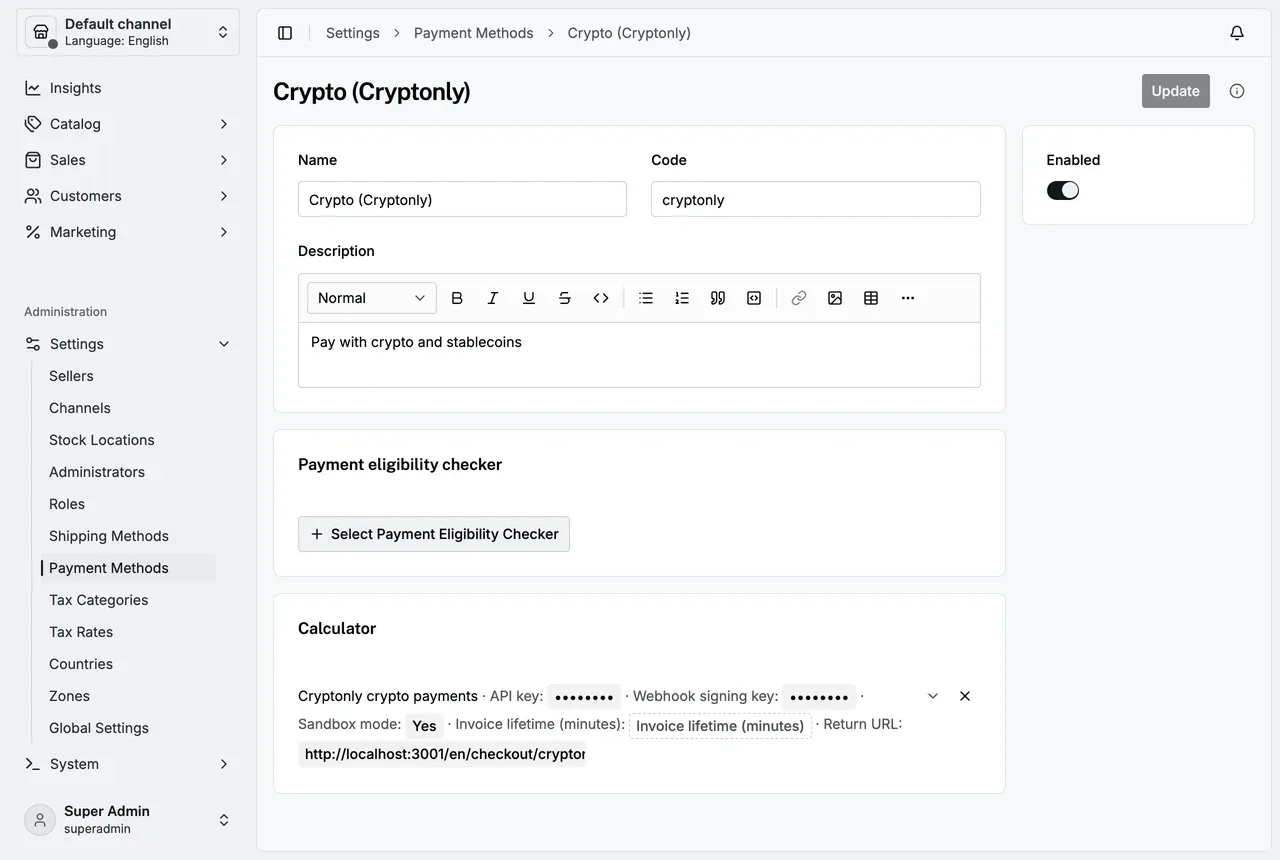
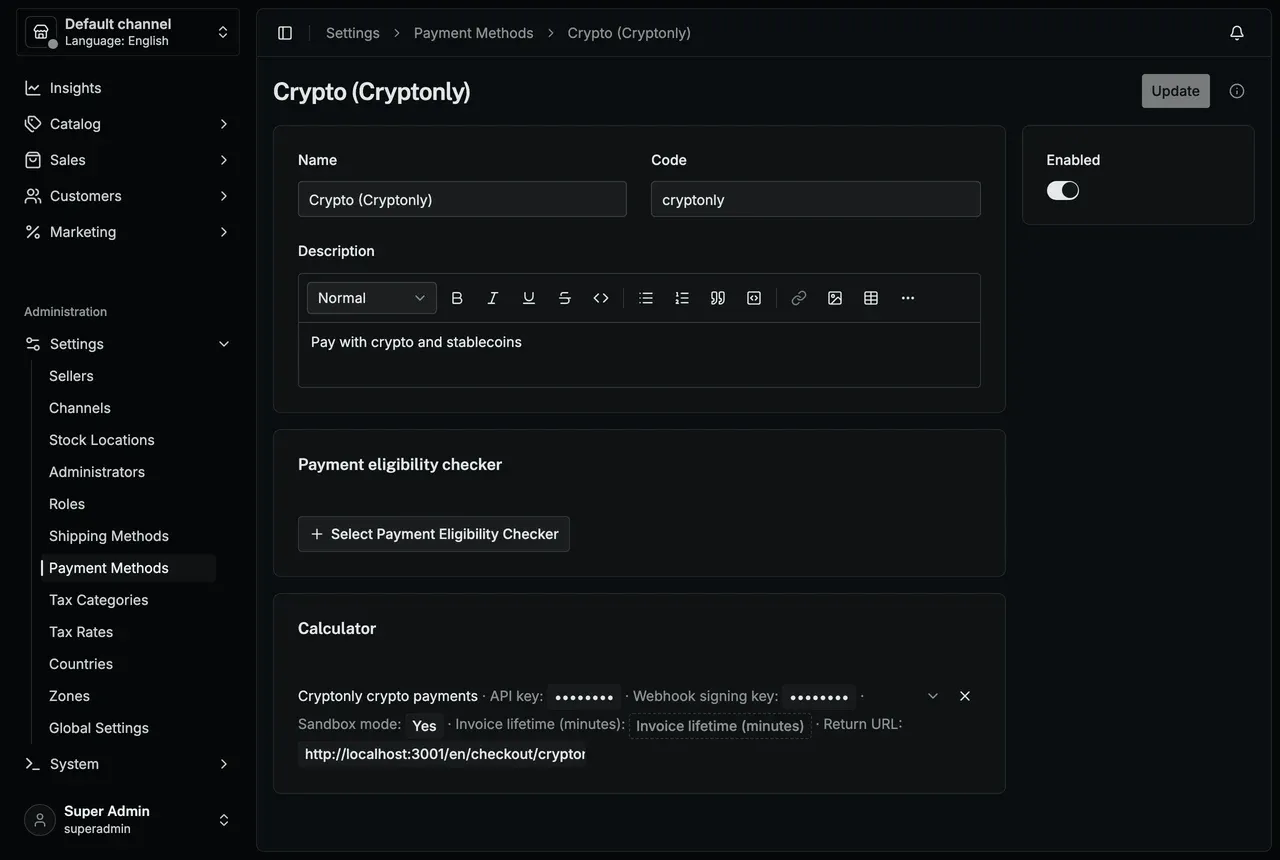
Section titled “Payment method”In the Dashboard, open Settings → Payment methods, create a payment method with the code cryptonly and choose the Cryptonly crypto payments handler:
| Field | Description |
|---|---|
| API key | API key from the account Security settings. The key selects the account. |
| Webhook signing key | Signing key from the same account. Used to verify webhooks. |
| Sandbox mode | Turn on for sandbox keys. |
| Invoice lifetime (minutes) | Optional, 15 to 43200. Empty uses the account default. |
| Return URL | Your storefront’s return page, opened by the Return to button on the hosted page whatever the outcome. {orderCode} is replaced with the order code. |
Create one payment method per channel that should accept crypto. Each channel can use its own Cryptonly account.
API key scopes
Section titled “API key scopes”| Scope | Used for |
|---|---|
invoices.create | Create the invoice when the customer places the order |
invoices.list | Confirm the invoice status for webhooks and manual settlement |
invoices.cancel | Cancel the invoice when the customer leaves checkout |
The plugin sets the webhook URL on every invoice, so you do not need to configure a default webhook in the Merchant Dashboard.
Storefront
Section titled “Storefront”Redirect to the payment page
Section titled “Redirect to the payment page”The order must be in ArrangingPayment. Add the payment and send the customer to its paymentPageUrl:
const { addPaymentToOrder } = await shopApi(`  mutation {    addPaymentToOrder(input: { method: "cryptonly", metadata: {} }) {      __typename      ... on Order { code payments { method state metadata } }      ... on ErrorResult { errorCode message }      ... on PaymentFailedError { paymentErrorMessage }    }  }`);
const payment = addPaymentToOrder.payments.find(  (p) => p.method === 'cryptonly' && p.state === 'Created');window.location.assign(payment.metadata.public.paymentPageUrl);
If the customer places the order again while the invoice is still open, redirect to the same paymentPageUrl from activeOrder.payments. A second addPaymentToOrder returns PaymentFailedError until the order goes back to AddingItems.
Return page
Section titled “Return page”Set the payment method’s Return URL to a page such as /checkout/cryptonly/{orderCode}. Customers land there whether they paid, cancelled or let the invoice expire, so the page polls the Shop API every few seconds:
| What you see | Meaning |
|---|---|
activeOrder has this code, state ArrangingPayment | Waiting for payment: show a spinner |
activeOrder has this code, state AddingItems | Invoice cancelled or expired: send back to checkout |
orderByCode(code) returns PaymentSettled | Paid: show the order confirmation |
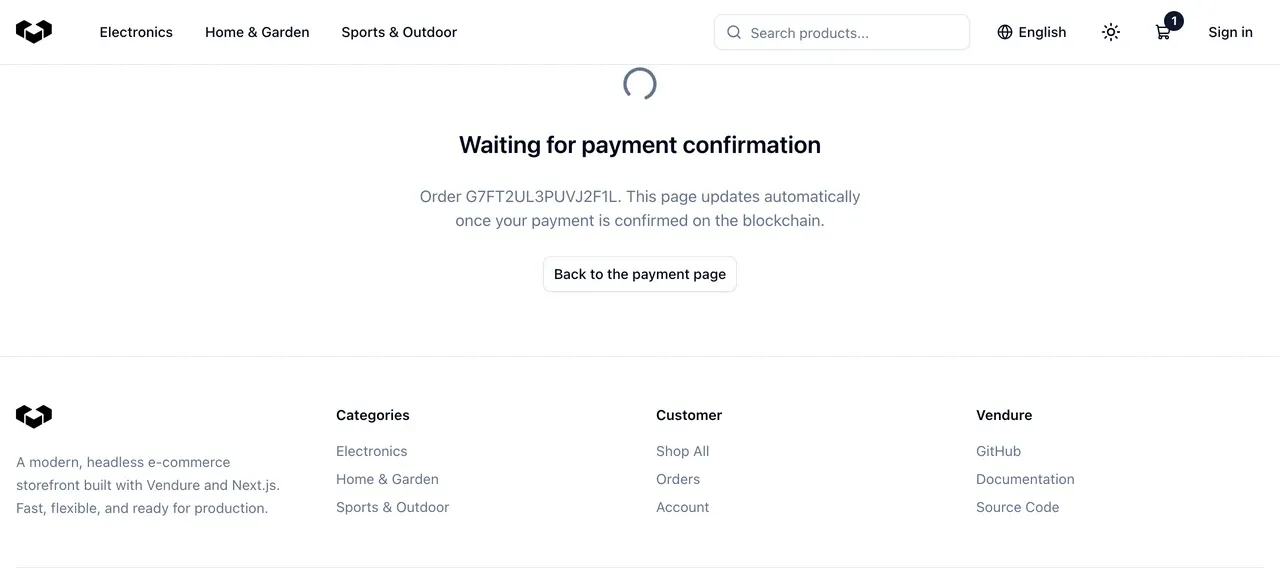
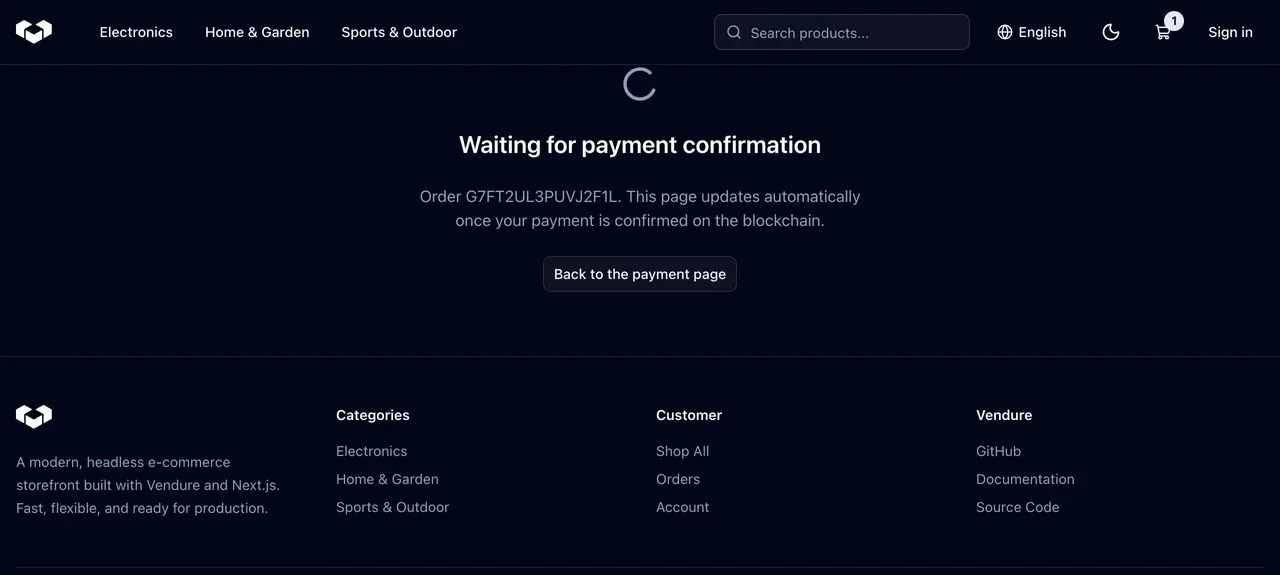
Ready-made helpers for both steps are in the plugin’s assets/storefront folder.
Status mapping
Section titled “Status mapping”| Cryptonly status | Vendure |
|---|---|
paid, overpaid | Payment Settled, order moves to PaymentSettled |
created, processing | Payment stays Created |
cancelled, expired, failed | Payment Declined, order goes back to AddingItems |
partially_paid, suspended | Payment stays Created and is flagged needsReview. Resolve it in the Merchant Dashboard |
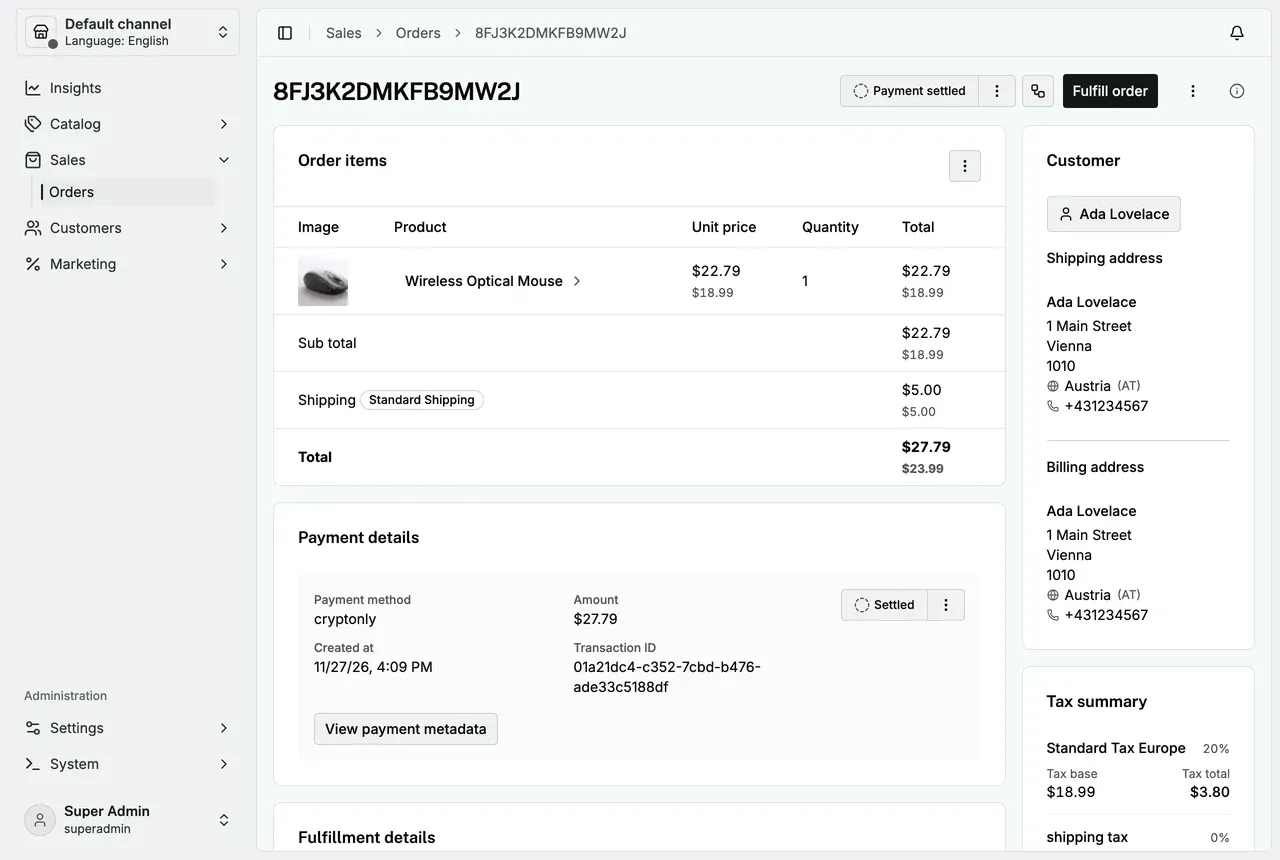
Keep in mind:
- When an order leaves
ArrangingPaymentunpaid (the customer returns to the cart, or the order is cancelled), the open invoice is cancelled in Cryptonly. - Settle in the Dashboard only succeeds when Cryptonly reports the invoice as paid. Cancel is refused once the invoice has received funds.
- Refunds made in Vendure are not sent to Cryptonly. Refund the customer from the Merchant Dashboard.
For webhook signing details, see Webhooks. For sandbox testing, see Testing your integration.
Related pages
Section titled “Related pages”
Support
Section titled “Support”For help with your Cryptonly merchant account, credentials, or payment questions, write to support@cryptonly.net.