



Paymenter
Cryptonly for Paymenter lets your Paymenter site accept Bitcoin, stablecoins, and other cryptocurrencies through Cryptonly’s hosted checkout.
Customers open an invoice, click Pay, choose Cryptonly, and pay on the Cryptonly payment page. Invoices stay in your Paymenter currency. Paymenter records the payment only after a signed invoice.statusChanged webhook, and marks the invoice paid once nothing is left to pay.
How the payment flow works
Section titled “How the payment flow works”)%3b%7d%23mermaid-0 rect.note%5bdata-look='neo'%5d%7bstroke:%23aaaa33%3bfill:%23fff5ad%3bfilter:drop-shadow(1px 2px 2px rgba(185%2c 185%2c 185%2c 1))%3b%7d%23mermaid-0 text.actor%26gt%3btspan%7bfill:black%3bstroke:none%3b%7d%23mermaid-0 .actor-line%7bstroke:%239370DB%3b%7d%23mermaid-0 .innerArc%7bstroke-width:1.5%3bstroke-dasharray:none%3b%7d%23mermaid-0 .messageLine0%7bstroke-width:1.5%3bstroke-dasharray:none%3bstroke:%23333%3b%7d%23mermaid-0 .messageLine1%7bstroke-width:1.5%3bstroke-dasharray:2%2c2%3bstroke:%23333%3b%7d%23mermaid-0 %5bid%24='-arrowhead'%5d path%7bfill:%23333%3bstroke:%23333%3b%7d%23mermaid-0 .sequenceNumber%7bfill:white%3b%7d%23mermaid-0 %5bid%24='-sequencenumber'%5d%7bfill:%23333%3b%7d%23mermaid-0 %5bid%24='-crosshead'%5d path%7bfill:%23333%3bstroke:%23333%3b%7d%23mermaid-0 .messageText%7bfill:%23333%3bstroke:none%3b%7d%23mermaid-0 .labelBox%7bstroke:%239370DB%3bfill:%23ECECFF%3bfilter:none%3b%7d%23mermaid-0 .labelText%2c%23mermaid-0 .labelText%26gt%3btspan%7bfill:black%3bstroke:none%3b%7d%23mermaid-0 .loopText%2c%23mermaid-0 .loopText%26gt%3btspan%7bfill:black%3bstroke:none%3b%7d%23mermaid-0 .sectionTitle%2c%23mermaid-0 .sectionTitle%26gt%3btspan%7bfill:black%3bstroke:none%3b%7d%23mermaid-0 .loopLine%7bstroke-width:2px%3bstroke-dasharray:2%2c2%3bstroke:%239370DB%3bfill:%239370DB%3b%7d%23mermaid-0 .note%7bstroke:%23aaaa33%3bfill:%23fff5ad%3b%7d%23mermaid-0 .noteText%2c%23mermaid-0 .noteText%26gt%3btspan%7bfill:black%3bstroke:none%3bfont-weight:normal%3b%7d%23mermaid-0 .activation0%7bfill:%23f4f4f4%3bstroke:%23666%3b%7d%23mermaid-0 .activation1%7bfill:%23f4f4f4%3bstroke:%23666%3b%7d%23mermaid-0 .activation2%7bfill:%23f4f4f4%3bstroke:%23666%3b%7d%23mermaid-0 .actorPopupMenu%7bposition:absolute%3b%7d%23mermaid-0 .actorPopupMenuPanel%7bposition:absolute%3bfill:%23ECECFF%3bbox-shadow:0px 8px 16px 0px rgba(0%2c0%2c0%2c0.2)%3bfilter:drop-shadow(3px 5px 2px rgb(0 0 0 / 0.4))%3b%7d%23mermaid-0 .actor-man circle%2c%23mermaid-0 line%7bfill:%23ECECFF%3bstroke-width:2px%3b%7d%23mermaid-0 g rect.rect%7bfilter:drop-shadow(1px 2px 2px rgba(185%2c 185%2c 185%2c 1))%3bstroke:%239370DB%3b%7d%23mermaid-0 .node .neo-node%7bstroke:%239370DB%3b%7d%23mermaid-0 %5bdata-look='neo'%5d.node rect%2c%23mermaid-0 %5bdata-look='neo'%5d.cluster rect%2c%23mermaid-0 %5bdata-look='neo'%5d.node polygon%7bstroke:%239370DB%3bfilter:drop-shadow(1px 2px 2px rgba(185%2c 185%2c 185%2c 1))%3b%7d%23mermaid-0 %5bdata-look='neo'%5d.swimlane.cluster rect%7bfilter:none%3b%7d%23mermaid-0 %5bdata-look='neo'%5d.node path%7bstroke:%239370DB%3bstroke-width:1px%3b%7d%23mermaid-0 %5bdata-look='neo'%5d.node .outer-path%7bfilter:drop-shadow(1px 2px 2px rgba(185%2c 185%2c 185%2c 1))%3b%7d%23mermaid-0 %5bdata-look='neo'%5d.node .neo-line path%7bstroke:%239370DB%3bfilter:none%3b%7d%23mermaid-0 %5bdata-look='neo'%5d.node circle%7bstroke:%239370DB%3bfilter:drop-shadow(1px 2px 2px rgba(185%2c 185%2c 185%2c 1))%3b%7d%23mermaid-0 %5bdata-look='neo'%5d.node circle .state-start%7bfill:black%3b%7d%23mermaid-0 %5bdata-look='neo'%5d.icon-shape .icon%7bfill:%239370DB%3bfilter:drop-shadow(1px 2px 2px rgba(185%2c 185%2c 185%2c 1))%3b%7d%23mermaid-0 %5bdata-look='neo'%5d.icon-shape .icon-neo path%7bstroke:%239370DB%3bfilter:drop-shadow(1px 2px 2px rgba(185%2c 185%2c 185%2c 1))%3b%7d%23mermaid-0 :root%7b--mermaid-font-family:arial%2csans-serif%3b%7d%3c/style%3e%3cg/%3e%3cdefs%3e%3csymbol id='mermaid-0-computer' width='24' height='24'%3e%3cpath transform='scale(.5)' d='M2 2v13h20v-13h-20zm18 11h-16v-9h16v9zm-10.228 6l.466-1h3.524l.467 1h-4.457zm14.228 3h-24l2-6h2.104l-1.33 4h18.45l-1.297-4h2.073l2 6zm-5-10h-14v-7h14v7z'/%3e%3c/symbol%3e%3c/defs%3e%3cdefs%3e%3csymbol id='mermaid-0-database' fill-rule='evenodd' clip-rule='evenodd'%3e%3cpath transform='scale(.5)' d='M12.258.001l.256.004.255.005.253.008.251.01.249.012.247.015.246.016.242.019.241.02.239.023.236.024.233.027.231.028.229.031.225.032.223.034.22.036.217.038.214.04.211.041.208.043.205.045.201.046.198.048.194.05.191.051.187.053.183.054.18.056.175.057.172.059.168.06.163.061.16.063.155.064.15.066.074.033.073.033.071.034.07.034.069.035.068.035.067.035.066.035.064.036.064.036.062.036.06.036.06.037.058.037.058.037.055.038.055.038.053.038.052.038.051.039.05.039.048.039.047.039.045.04.044.04.043.04.041.04.04.041.039.041.037.041.036.041.034.041.033.042.032.042.03.042.029.042.027.042.026.043.024.043.023.043.021.043.02.043.018.044.017.043.015.044.013.044.012.044.011.045.009.044.007.045.006.045.004.045.002.045.001.045v17l-.001.045-.002.045-.004.045-.006.045-.007.045-.009.044-.011.045-.012.044-.013.044-.015.044-.017.043-.018.044-.02.043-.021.043-.023.043-.024.043-.026.043-.027.042-.029.042-.03.042-.032.042-.033.042-.034.041-.036.041-.037.041-.039.041-.04.041-.041.04-.043.04-.044.04-.045.04-.047.039-.048.039-.05.039-.051.039-.052.038-.053.038-.055.038-.055.038-.058.037-.058.037-.06.037-.06.036-.062.036-.064.036-.064.036-.066.035-.067.035-.068.035-.069.035-.07.034-.071.034-.073.033-.074.033-.15.066-.155.064-.16.063-.163.061-.168.06-.172.059-.175.057-.18.056-.183.054-.187.053-.191.051-.194.05-.198.048-.201.046-.205.045-.208.043-.211.041-.214.04-.217.038-.22.036-.223.034-.225.032-.229.031-.231.028-.233.027-.236.024-.239.023-.241.02-.242.019-.246.016-.247.015-.249.012-.251.01-.253.008-.255.005-.256.004-.258.001-.258-.001-.256-.004-.255-.005-.253-.008-.251-.01-.249-.012-.247-.015-.245-.016-.243-.019-.241-.02-.238-.023-.236-.024-.234-.027-.231-.028-.228-.031-.226-.032-.223-.034-.22-.036-.217-.038-.214-.04-.211-.041-.208-.043-.204-.045-.201-.046-.198-.048-.195-.05-.19-.051-.187-.053-.184-.054-.179-.056-.176-.057-.172-.059-.167-.06-.164-.061-.159-.063-.155-.064-.151-.066-.074-.033-.072-.033-.072-.034-.07-.034-.069-.035-.068-.035-.067-.035-.066-.035-.064-.036-.063-.036-.062-.036-.061-.036-.06-.037-.058-.037-.057-.037-.056-.038-.055-.038-.053-.038-.052-.038-.051-.039-.049-.039-.049-.039-.046-.039-.046-.04-.044-.04-.043-.04-.041-.04-.04-.041-.039-.041-.037-.041-.036-.041-.034-.041-.033-.042-.032-.042-.03-.042-.029-.042-.027-.042-.026-.043-.024-.043-.023-.043-.021-.043-.02-.043-.018-.044-.017-.043-.015-.044-.013-.044-.012-.044-.011-.045-.009-.044-.007-.045-.006-.045-.004-.045-.002-.045-.001-.045v-17l.001-.045.002-.045.004-.045.006-.045.007-.045.009-.044.011-.045.012-.044.013-.044.015-.044.017-.043.018-.044.02-.043.021-.043.023-.043.024-.043.026-.043.027-.042.029-.042.03-.042.032-.042.033-.042.034-.041.036-.041.037-.041.039-.041.04-.041.041-.04.043-.04.044-.04.046-.04.046-.039.049-.039.049-.039.051-.039.052-.038.053-.038.055-.038.056-.038.057-.037.058-.037.06-.037.061-.036.062-.036.063-.036.064-.036.066-.035.067-.035.068-.035.069-.035.07-.034.072-.034.072-.033.074-.033.151-.066.155-.064.159-.063.164-.061.167-.06.172-.059.176-.057.179-.056.184-.054.187-.053.19-.051.195-.05.198-.048.201-.046.204-.045.208-.043.211-.041.214-.04.217-.038.22-.036.223-.034.226-.032.228-.031.231-.028.234-.027.236-.024.238-.023.241-.02.243-.019.245-.016.247-.015.249-.012.251-.01.253-.008.255-.005.256-.004.258-.001.258.001zm-9.258 20.499v.01l.001.021.003.021.004.022.005.021.006.022.007.022.009.023.01.022.011.023.012.023.013.023.015.023.016.024.017.023.018.024.019.024.021.024.022.025.023.024.024.025.052.049.056.05.061.051.066.051.07.051.075.051.079.052.084.052.088.052.092.052.097.052.102.051.105.052.11.052.114.051.119.051.123.051.127.05.131.05.135.05.139.048.144.049.147.047.152.047.155.047.16.045.163.045.167.043.171.043.176.041.178.041.183.039.187.039.19.037.194.035.197.035.202.033.204.031.209.03.212.029.216.027.219.025.222.024.226.021.23.02.233.018.236.016.24.015.243.012.246.01.249.008.253.005.256.004.259.001.26-.001.257-.004.254-.005.25-.008.247-.011.244-.012.241-.014.237-.016.233-.018.231-.021.226-.021.224-.024.22-.026.216-.027.212-.028.21-.031.205-.031.202-.034.198-.034.194-.036.191-.037.187-.039.183-.04.179-.04.175-.042.172-.043.168-.044.163-.045.16-.046.155-.046.152-.047.148-.048.143-.049.139-.049.136-.05.131-.05.126-.05.123-.051.118-.052.114-.051.11-.052.106-.052.101-.052.096-.052.092-.052.088-.053.083-.051.079-.052.074-.052.07-.051.065-.051.06-.051.056-.05.051-.05.023-.024.023-.025.021-.024.02-.024.019-.024.018-.024.017-.024.015-.023.014-.024.013-.023.012-.023.01-.023.01-.022.008-.022.006-.022.006-.022.004-.022.004-.021.001-.021.001-.021v-4.127l-.077.055-.08.053-.083.054-.085.053-.087.052-.09.052-.093.051-.095.05-.097.05-.1.049-.102.049-.105.048-.106.047-.109.047-.111.046-.114.045-.115.045-.118.044-.12.043-.122.042-.124.042-.126.041-.128.04-.13.04-.132.038-.134.038-.135.037-.138.037-.139.035-.142.035-.143.034-.144.033-.147.032-.148.031-.15.03-.151.03-.153.029-.154.027-.156.027-.158.026-.159.025-.161.024-.162.023-.163.022-.165.021-.166.02-.167.019-.169.018-.169.017-.171.016-.173.015-.173.014-.175.013-.175.012-.177.011-.178.01-.179.008-.179.008-.181.006-.182.005-.182.004-.184.003-.184.002h-.37l-.184-.002-.184-.003-.182-.004-.182-.005-.181-.006-.179-.008-.179-.008-.178-.01-.176-.011-.176-.012-.175-.013-.173-.014-.172-.015-.171-.016-.17-.017-.169-.018-.167-.019-.166-.02-.165-.021-.163-.022-.162-.023-.161-.024-.159-.025-.157-.026-.156-.027-.155-.027-.153-.029-.151-.03-.15-.03-.148-.031-.146-.032-.145-.033-.143-.034-.141-.035-.14-.035-.137-.037-.136-.037-.134-.038-.132-.038-.13-.04-.128-.04-.126-.041-.124-.042-.122-.042-.12-.044-.117-.043-.116-.045-.113-.045-.112-.046-.109-.047-.106-.047-.105-.048-.102-.049-.1-.049-.097-.05-.095-.05-.093-.052-.09-.051-.087-.052-.085-.053-.083-.054-.08-.054-.077-.054v4.127zm0-5.654v.011l.001.021.003.021.004.021.005.022.006.022.007.022.009.022.01.022.011.023.012.023.013.023.015.024.016.023.017.024.018.024.019.024.021.024.022.024.023.025.024.024.052.05.056.05.061.05.066.051.07.051.075.052.079.051.084.052.088.052.092.052.097.052.102.052.105.052.11.051.114.051.119.052.123.05.127.051.131.05.135.049.139.049.144.048.147.048.152.047.155.046.16.045.163.045.167.044.171.042.176.042.178.04.183.04.187.038.19.037.194.036.197.034.202.033.204.032.209.03.212.028.216.027.219.025.222.024.226.022.23.02.233.018.236.016.24.014.243.012.246.01.249.008.253.006.256.003.259.001.26-.001.257-.003.254-.006.25-.008.247-.01.244-.012.241-.015.237-.016.233-.018.231-.02.226-.022.224-.024.22-.025.216-.027.212-.029.21-.03.205-.032.202-.033.198-.035.194-.036.191-.037.187-.039.183-.039.179-.041.175-.042.172-.043.168-.044.163-.045.16-.045.155-.047.152-.047.148-.048.143-.048.139-.05.136-.049.131-.05.126-.051.123-.051.118-.051.114-.052.11-.052.106-.052.101-.052.096-.052.092-.052.088-.052.083-.052.079-.052.074-.051.07-.052.065-.051.06-.05.056-.051.051-.049.023-.025.023-.024.021-.025.02-.024.019-.024.018-.024.017-.024.015-.023.014-.023.013-.024.012-.022.01-.023.01-.023.008-.022.006-.022.006-.022.004-.021.004-.022.001-.021.001-.021v-4.139l-.077.054-.08.054-.083.054-.085.052-.087.053-.09.051-.093.051-.095.051-.097.05-.1.049-.102.049-.105.048-.106.047-.109.047-.111.046-.114.045-.115.044-.118.044-.12.044-.122.042-.124.042-.126.041-.128.04-.13.039-.132.039-.134.038-.135.037-.138.036-.139.036-.142.035-.143.033-.144.033-.147.033-.148.031-.15.03-.151.03-.153.028-.154.028-.156.027-.158.026-.159.025-.161.024-.162.023-.163.022-.165.021-.166.02-.167.019-.169.018-.169.017-.171.016-.173.015-.173.014-.175.013-.175.012-.177.011-.178.009-.179.009-.179.007-.181.007-.182.005-.182.004-.184.003-.184.002h-.37l-.184-.002-.184-.003-.182-.004-.182-.005-.181-.007-.179-.007-.179-.009-.178-.009-.176-.011-.176-.012-.175-.013-.173-.014-.172-.015-.171-.016-.17-.017-.169-.018-.167-.019-.166-.02-.165-.021-.163-.022-.162-.023-.161-.024-.159-.025-.157-.026-.156-.027-.155-.028-.153-.028-.151-.03-.15-.03-.148-.031-.146-.033-.145-.033-.143-.033-.141-.035-.14-.036-.137-.036-.136-.037-.134-.038-.132-.039-.13-.039-.128-.04-.126-.041-.124-.042-.122-.043-.12-.043-.117-.044-.116-.044-.113-.046-.112-.046-.109-.046-.106-.047-.105-.048-.102-.049-.1-.049-.097-.05-.095-.051-.093-.051-.09-.051-.087-.053-.085-.052-.083-.054-.08-.054-.077-.054v4.139zm0-5.666v.011l.001.02.003.022.004.021.005.022.006.021.007.022.009.023.01.022.011.023.012.023.013.023.015.023.016.024.017.024.018.023.019.024.021.025.022.024.023.024.024.025.052.05.056.05.061.05.066.051.07.051.075.052.079.051.084.052.088.052.092.052.097.052.102.052.105.051.11.052.114.051.119.051.123.051.127.05.131.05.135.05.139.049.144.048.147.048.152.047.155.046.16.045.163.045.167.043.171.043.176.042.178.04.183.04.187.038.19.037.194.036.197.034.202.033.204.032.209.03.212.028.216.027.219.025.222.024.226.021.23.02.233.018.236.017.24.014.243.012.246.01.249.008.253.006.256.003.259.001.26-.001.257-.003.254-.006.25-.008.247-.01.244-.013.241-.014.237-.016.233-.018.231-.02.226-.022.224-.024.22-.025.216-.027.212-.029.21-.03.205-.032.202-.033.198-.035.194-.036.191-.037.187-.039.183-.039.179-.041.175-.042.172-.043.168-.044.163-.045.16-.045.155-.047.152-.047.148-.048.143-.049.139-.049.136-.049.131-.051.126-.05.123-.051.118-.052.114-.051.11-.052.106-.052.101-.052.096-.052.092-.052.088-.052.083-.052.079-.052.074-.052.07-.051.065-.051.06-.051.056-.05.051-.049.023-.025.023-.025.021-.024.02-.024.019-.024.018-.024.017-.024.015-.023.014-.024.013-.023.012-.023.01-.022.01-.023.008-.022.006-.022.006-.022.004-.022.004-.021.001-.021.001-.021v-4.153l-.077.054-.08.054-.083.053-.085.053-.087.053-.09.051-.093.051-.095.051-.097.05-.1.049-.102.048-.105.048-.106.048-.109.046-.111.046-.114.046-.115.044-.118.044-.12.043-.122.043-.124.042-.126.041-.128.04-.13.039-.132.039-.134.038-.135.037-.138.036-.139.036-.142.034-.143.034-.144.033-.147.032-.148.032-.15.03-.151.03-.153.028-.154.028-.156.027-.158.026-.159.024-.161.024-.162.023-.163.023-.165.021-.166.02-.167.019-.169.018-.169.017-.171.016-.173.015-.173.014-.175.013-.175.012-.177.01-.178.01-.179.009-.179.007-.181.006-.182.006-.182.004-.184.003-.184.001-.185.001-.185-.001-.184-.001-.184-.003-.182-.004-.182-.006-.181-.006-.179-.007-.179-.009-.178-.01-.176-.01-.176-.012-.175-.013-.173-.014-.172-.015-.171-.016-.17-.017-.169-.018-.167-.019-.166-.02-.165-.021-.163-.023-.162-.023-.161-.024-.159-.024-.157-.026-.156-.027-.155-.028-.153-.028-.151-.03-.15-.03-.148-.032-.146-.032-.145-.033-.143-.034-.141-.034-.14-.036-.137-.036-.136-.037-.134-.038-.132-.039-.13-.039-.128-.041-.126-.041-.124-.041-.122-.043-.12-.043-.117-.044-.116-.044-.113-.046-.112-.046-.109-.046-.106-.048-.105-.048-.102-.048-.1-.05-.097-.049-.095-.051-.093-.051-.09-.052-.087-.052-.085-.053-.083-.053-.08-.054-.077-.054v4.153zm8.74-8.179l-.257.004-.254.005-.25.008-.247.011-.244.012-.241.014-.237.016-.233.018-.231.021-.226.022-.224.023-.22.026-.216.027-.212.028-.21.031-.205.032-.202.033-.198.034-.194.036-.191.038-.187.038-.183.04-.179.041-.175.042-.172.043-.168.043-.163.045-.16.046-.155.046-.152.048-.148.048-.143.048-.139.049-.136.05-.131.05-.126.051-.123.051-.118.051-.114.052-.11.052-.106.052-.101.052-.096.052-.092.052-.088.052-.083.052-.079.052-.074.051-.07.052-.065.051-.06.05-.056.05-.051.05-.023.025-.023.024-.021.024-.02.025-.019.024-.018.024-.017.023-.015.024-.014.023-.013.023-.012.023-.01.023-.01.022-.008.022-.006.023-.006.021-.004.022-.004.021-.001.021-.001.021.001.021.001.021.004.021.004.022.006.021.006.023.008.022.01.022.01.023.012.023.013.023.014.023.015.024.017.023.018.024.019.024.02.025.021.024.023.024.023.025.051.05.056.05.06.05.065.051.07.052.074.051.079.052.083.052.088.052.092.052.096.052.101.052.106.052.11.052.114.052.118.051.123.051.126.051.131.05.136.05.139.049.143.048.148.048.152.048.155.046.16.046.163.045.168.043.172.043.175.042.179.041.183.04.187.038.191.038.194.036.198.034.202.033.205.032.21.031.212.028.216.027.22.026.224.023.226.022.231.021.233.018.237.016.241.014.244.012.247.011.25.008.254.005.257.004.26.001.26-.001.257-.004.254-.005.25-.008.247-.011.244-.012.241-.014.237-.016.233-.018.231-.021.226-.022.224-.023.22-.026.216-.027.212-.028.21-.031.205-.032.202-.033.198-.034.194-.036.191-.038.187-.038.183-.04.179-.041.175-.042.172-.043.168-.043.163-.045.16-.046.155-.046.152-.048.148-.048.143-.048.139-.049.136-.05.131-.05.126-.051.123-.051.118-.051.114-.052.11-.052.106-.052.101-.052.096-.052.092-.052.088-.052.083-.052.079-.052.074-.051.07-.052.065-.051.06-.05.056-.05.051-.05.023-.025.023-.024.021-.024.02-.025.019-.024.018-.024.017-.023.015-.024.014-.023.013-.023.012-.023.01-.023.01-.022.008-.022.006-.023.006-.021.004-.022.004-.021.001-.021.001-.021-.001-.021-.001-.021-.004-.021-.004-.022-.006-.021-.006-.023-.008-.022-.01-.022-.01-.023-.012-.023-.013-.023-.014-.023-.015-.024-.017-.023-.018-.024-.019-.024-.02-.025-.021-.024-.023-.024-.023-.025-.051-.05-.056-.05-.06-.05-.065-.051-.07-.052-.074-.051-.079-.052-.083-.052-.088-.052-.092-.052-.096-.052-.101-.052-.106-.052-.11-.052-.114-.052-.118-.051-.123-.051-.126-.051-.131-.05-.136-.05-.139-.049-.143-.048-.148-.048-.152-.048-.155-.046-.16-.046-.163-.045-.168-.043-.172-.043-.175-.042-.179-.041-.183-.04-.187-.038-.191-.038-.194-.036-.198-.034-.202-.033-.205-.032-.21-.031-.212-.028-.216-.027-.22-.026-.224-.023-.226-.022-.231-.021-.233-.018-.237-.016-.241-.014-.244-.012-.247-.011-.25-.008-.254-.005-.257-.004-.26-.001-.26.001z'/%3e%3c/symbol%3e%3c/defs%3e%3cdefs%3e%3csymbol id='mermaid-0-clock' width='24' height='24'%3e%3cpath transform='scale(.5)' d='M12 2c5.514 0 10 4.486 10 10s-4.486 10-10 10-10-4.486-10-10 4.486-10 10-10zm0-2c-6.627 0-12 5.373-12 12s5.373 12 12 12 12-5.373 12-12-5.373-12-12-12zm5.848 12.459c.202.038.202.333.001.372-1.907.361-6.045 1.111-6.547 1.111-.719 0-1.301-.582-1.301-1.301 0-.512.77-5.447 1.125-7.445.034-.192.312-.181.343.014l.985 6.238 5.394 1.011z'/%3e%3c/symbol%3e%3c/defs%3e%3cdefs%3e%3cmarker id='mermaid-0-arrowhead' refX='7.9' refY='5' markerUnits='userSpaceOnUse' markerWidth='12' markerHeight='12' orient='auto-start-reverse'%3e%3cpath d='M -1 0 L 10 5 L 0 10 z'/%3e%3c/marker%3e%3c/defs%3e%3cdefs%3e%3cmarker id='mermaid-0-crosshead' markerWidth='15' markerHeight='8' orient='auto' refX='4' refY='4.5'%3e%3cpath fill='none' stroke='black' stroke-width='1pt' d='M 1%2c2 L 6%2c7 M 6%2c2 L 1%2c7' style='stroke-dasharray: 0%2c 0%3b'/%3e%3c/marker%3e%3c/defs%3e%3cdefs%3e%3cmarker id='mermaid-0-filled-head' refX='15.5' refY='7' markerWidth='20' markerHeight='28' orient='auto'%3e%3cpath d='M 18%2c7 L9%2c13 L14%2c7 L9%2c1 Z'/%3e%3c/marker%3e%3c/defs%3e%3cdefs%3e%3cmarker id='mermaid-0-sequencenumber' refX='15' refY='15' markerWidth='60' markerHeight='40' orient='auto'%3e%3ccircle cx='15' cy='15' r='6'/%3e%3c/marker%3e%3c/defs%3e%3cdefs%3e%3cmarker id='mermaid-0-solidTopArrowHead' refX='7.9' refY='7.25' markerUnits='userSpaceOnUse' markerWidth='12' markerHeight='12' orient='auto-start-reverse'%3e%3cpath d='M 0 0 L 10 8 L 0 8 z'/%3e%3c/marker%3e%3c/defs%3e%3cdefs%3e%3cmarker id='mermaid-0-solidBottomArrowHead' refX='7.9' refY='0.75' markerUnits='userSpaceOnUse' markerWidth='12' markerHeight='12' orient='auto-start-reverse'%3e%3cpath d='M 0 0 L 10 0 L 0 8 z'/%3e%3c/marker%3e%3c/defs%3e%3cdefs%3e%3cmarker id='mermaid-0-stickTopArrowHead' refX='7.5' refY='7' markerUnits='userSpaceOnUse' markerWidth='12' markerHeight='12' orient='auto-start-reverse'%3e%3cpath d='M 0 0 L 7 7' stroke='black' stroke-width='1.5' fill='none'/%3e%3c/marker%3e%3c/defs%3e%3cdefs%3e%3cmarker id='mermaid-0-stickBottomArrowHead' refX='7.5' refY='0' markerUnits='userSpaceOnUse' markerWidth='12' markerHeight='12' orient='auto-start-reverse'%3e%3cpath d='M 0 7 L 7 0' stroke='black' stroke-width='1.5' fill='none'/%3e%3c/marker%3e%3c/defs%3e%3ctext x='208' y='80' text-anchor='middle' dominant-baseline='middle' alignment-baseline='middle' class='messageText' dy='1em' style='font-family: arial%2c sans-serif%3b font-size: 16px%3b font-weight: 400%3b'%3ePay invoice with Cryptonly%3c/text%3e%3cline x1='76' y1='109' x2='340' y2='109' class='messageLine0' data-et='message' data-id='i0' data-from='Customer' data-to='Paymenter' stroke-width='2' stroke='none' marker-end='url(%23mermaid-0-arrowhead)' style='fill: none%3b'/%3e%3ctext x='498' y='124' text-anchor='middle' dominant-baseline='middle' alignment-baseline='middle' class='messageText' dy='1em' style='font-family: arial%2c sans-serif%3b font-size: 16px%3b font-weight: 400%3b'%3eCreate invoice for the amount due%3c/text%3e%3cline x1='345' y1='153' x2='651' y2='153' class='messageLine0' data-et='message' data-id='i1' data-from='Paymenter' data-to='Cryptonly' stroke-width='2' stroke='none' marker-end='url(%23mermaid-0-arrowhead)' style='fill: none%3b'/%3e%3ctext x='501' y='168' text-anchor='middle' dominant-baseline='middle' alignment-baseline='middle' class='messageText' dy='1em' style='font-family: arial%2c sans-serif%3b font-size: 16px%3b font-weight: 400%3b'%3epaymentPageUrl%3c/text%3e%3cline x1='654' y1='197' x2='348' y2='197' class='messageLine1' data-et='message' data-id='i2' data-from='Cryptonly' data-to='Paymenter' stroke-width='2' stroke='none' marker-end='url(%23mermaid-0-arrowhead)' style='stroke-dasharray: 3%2c 3%3b fill: none%3b'/%3e%3ctext x='211' y='212' text-anchor='middle' dominant-baseline='middle' alignment-baseline='middle' class='messageText' dy='1em' style='font-family: arial%2c sans-serif%3b font-size: 16px%3b font-weight: 400%3b'%3eRedirect to hosted checkout%3c/text%3e%3cline x1='343' y1='241' x2='79' y2='241' class='messageLine1' data-et='message' data-id='i3' data-from='Paymenter' data-to='Customer' stroke-width='2' stroke='none' marker-end='url(%23mermaid-0-arrowhead)' style='stroke-dasharray: 3%2c 3%3b fill: none%3b'/%3e%3ctext x='364' y='256' text-anchor='middle' dominant-baseline='middle' alignment-baseline='middle' class='messageText' dy='1em' style='font-family: arial%2c sans-serif%3b font-size: 16px%3b font-weight: 400%3b'%3ePay with crypto%3c/text%3e%3cline x1='76' y1='285' x2='651' y2='285' class='messageLine0' data-et='message' data-id='i4' data-from='Customer' data-to='Cryptonly' stroke-width='2' stroke='none' marker-end='url(%23mermaid-0-arrowhead)' style='fill: none%3b'/%3e%3ctext x='501' y='300' text-anchor='middle' dominant-baseline='middle' alignment-baseline='middle' class='messageText' dy='1em' style='font-family: arial%2c sans-serif%3b font-size: 16px%3b font-weight: 400%3b'%3einvoice.statusChanged webhook%3c/text%3e%3cline x1='654' y1='329' x2='348' y2='329' class='messageLine0' data-et='message' data-id='i5' data-from='Cryptonly' data-to='Paymenter' stroke-width='2' stroke='none' marker-end='url(%23mermaid-0-arrowhead)' style='fill: none%3b'/%3e%3ctext x='211' y='344' text-anchor='middle' dominant-baseline='middle' alignment-baseline='middle' class='messageText' dy='1em' style='font-family: arial%2c sans-serif%3b font-size: 16px%3b font-weight: 400%3b'%3eInvoice marked paid%3c/text%3e%3cline x1='343' y1='373' x2='79' y2='373' class='messageLine1' data-et='message' data-id='i6' data-from='Paymenter' data-to='Customer' stroke-width='2' stroke='none' marker-end='url(%23mermaid-0-arrowhead)' style='stroke-dasharray: 3%2c 3%3b fill: none%3b'/%3e%3c/svg%3e)
At a high level:
- The customer clicks Pay on a Paymenter invoice and chooses the Cryptonly gateway.
- The extension creates a Cryptonly invoice server-side for the amount still due. Your API key never reaches the browser.
- The customer is redirected to the Cryptonly hosted payment page.
- After payment, Cryptonly sends a signed webhook to Paymenter.
- The extension verifies the webhook and records the payment on the invoice.
For more detail on invoices and statuses, see Invoices.
Requirements
Section titled “Requirements”| Requirement | Details |
|---|---|
| Paymenter | 1.5 or newer (tested with 1.5.9) |
| PHP | 8.3 or newer |
| Cryptonly account | Cryptonly merchant account |
| Public HTTPS App URL | Paymenter’s Settings → General → App URL must be a public HTTPS address so Cryptonly can deliver webhooks. Cryptonly does not follow redirects |
| Supported invoice currency | The invoice currency must be one Cryptonly prices. Other currencies do not show the gateway |
Before you install — Cryptonly account
Section titled “Before you install — Cryptonly account”- Sign up at cryptonly.net, or at sandbox-merchant.cryptonly.net for testing.
- Open Accounts, select the account, then Settings → Security. Create an API key. The key selects the account.
- On the same page, under Webhook signing key, click Rotate key and copy the secret when it is shown. It appears only once, and the previous key stops working immediately.
Install the extension
Section titled “Install the extension”Download cryptonly-paymenter-1.0.0.zip from the Paymenter marketplace, then install it one of two ways:
-
In Paymenter admin, open Extensions → Available Extensions → Ready to Install / Upload.
-
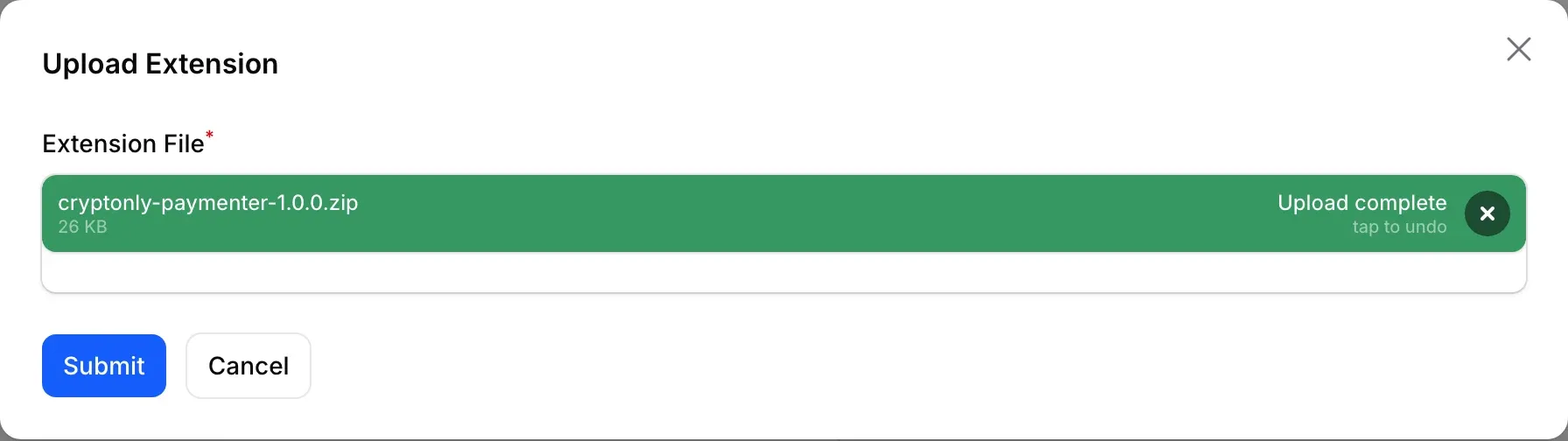
Click Upload Extension, choose the zip, and click Submit.
-
Extract the zip into your Paymenter
extensions/Gateways/folder (FTP, SFTP, or your hosting file manager). After extraction, this file should exist:extensions/Gateways/Cryptonly/Cryptonly.php -
Make sure the web server user can read the new folder.
To update, upload the newer zip the same way. Paymenter replaces the folder and keeps the gateway settings.
Configure the gateway
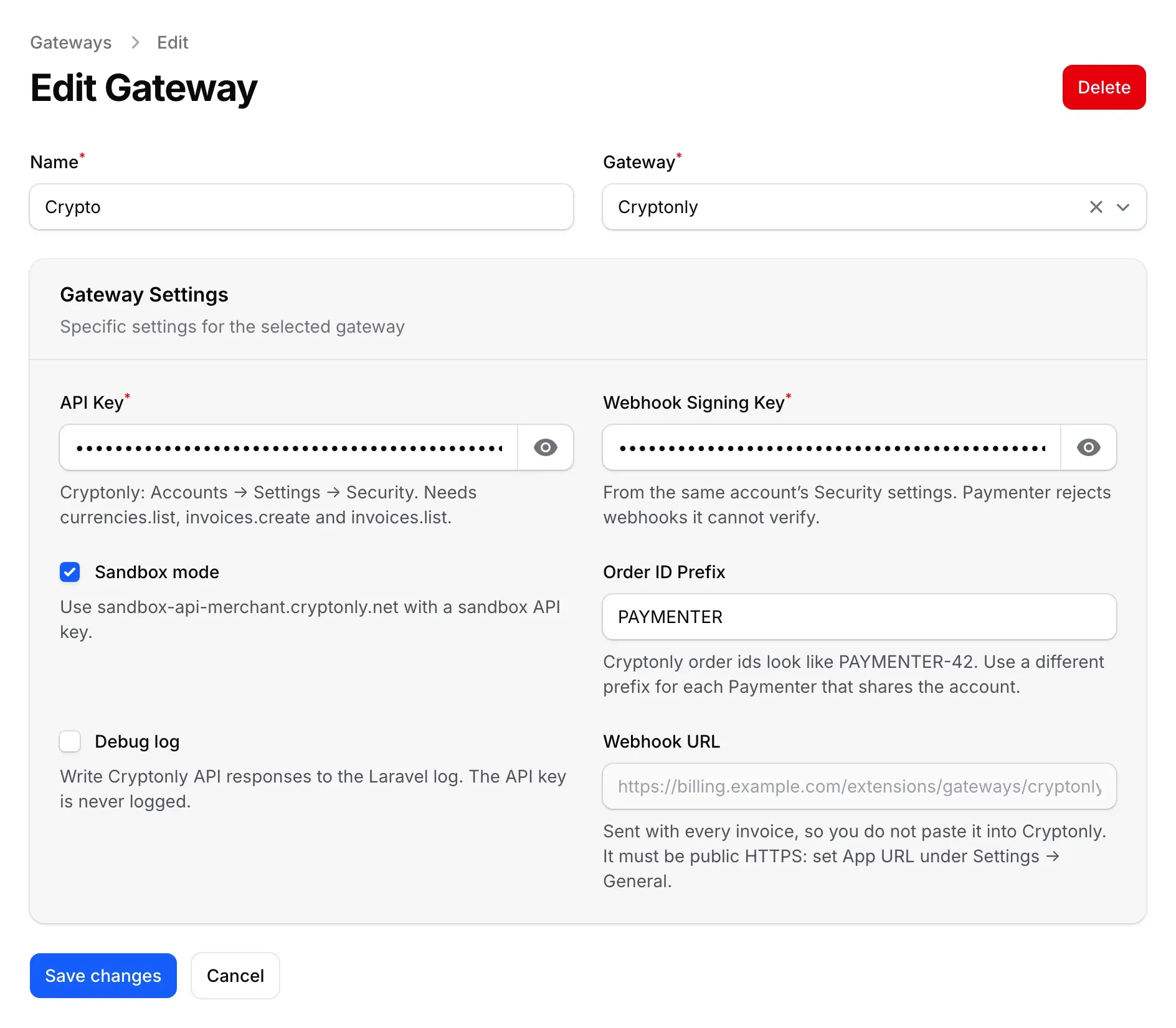
Section titled “Configure the gateway”Open Extensions → Gateways, click New, and choose Cryptonly under Gateway. Enter a Name, which is what customers see at checkout, then fill in the gateway settings.
| Setting | Purpose |
|---|---|
| Name | The payment method name customers see, for example Crypto |
| API Key | Cryptonly API key. The key selects the account. See required scopes |
| Webhook Signing Key | Signing key from the same account’s Security page. Paymenter rejects webhooks it cannot verify |
| Sandbox mode | Tick for a sandbox API key from sandbox-merchant.cryptonly.net |
| Order ID Prefix | Optional. Default PAYMENTER produces PAYMENTER-12, then PAYMENTER-12-2 on a later attempt. Use a different prefix for each site that shares an account |
| Debug log | Writes Cryptonly API responses to the Paymenter log (storage/logs). The API key is never logged |
| Webhook URL | Read-only. The address Cryptonly calls, built from App URL |
Saving checks the API key with Cryptonly GET /currencies. A sandbox key is refused unless Sandbox mode is ticked, and a production key is refused while it is ticked.
The extension sends the webhook URL with each invoice, so you do not paste it into the Cryptonly Merchant Dashboard:
{App URL}/extensions/gateways/cryptonly/webhookAPI key scopes
Section titled “API key scopes”Create the key on the account’s Accounts → Settings → Security page and enable only these scopes:
| Scope | Used for |
|---|---|
currencies.list | Confirm the API key when saving the gateway (GET /currencies) and list the invoice currencies Cryptonly prices (GET /currencies/fiat) |
invoices.list | Reuse a payable invoice or choose the next orderId, and load the invoice when create returns a duplicate (GET /invoice) |
invoices.create | Create the invoice at checkout (POST /invoice) |
Test in sandbox before going live
Section titled “Test in sandbox before going live”- Tick Sandbox mode and enter credentials from sandbox-merchant.cryptonly.net.
- Confirm Settings → General → App URL is public HTTPS. For a local Paymenter, use a tunnel such as ngrok and set App URL to the tunnel address.
- Sign in as a customer, open an unpaid invoice, click Pay, choose the Cryptonly gateway, and click Pay Now.
- Complete payment on the Cryptonly sandbox payment page using testnet assets only, or use Simulate payment on the invoice in Cryptonly Accounts → History to settle it without sending testnet funds.
- Confirm the Paymenter invoice shows Paid with a Succeeded transaction.
See Testing your integration for more on the History and simulator tools.
Customer payment experience
Section titled “Customer payment experience”-
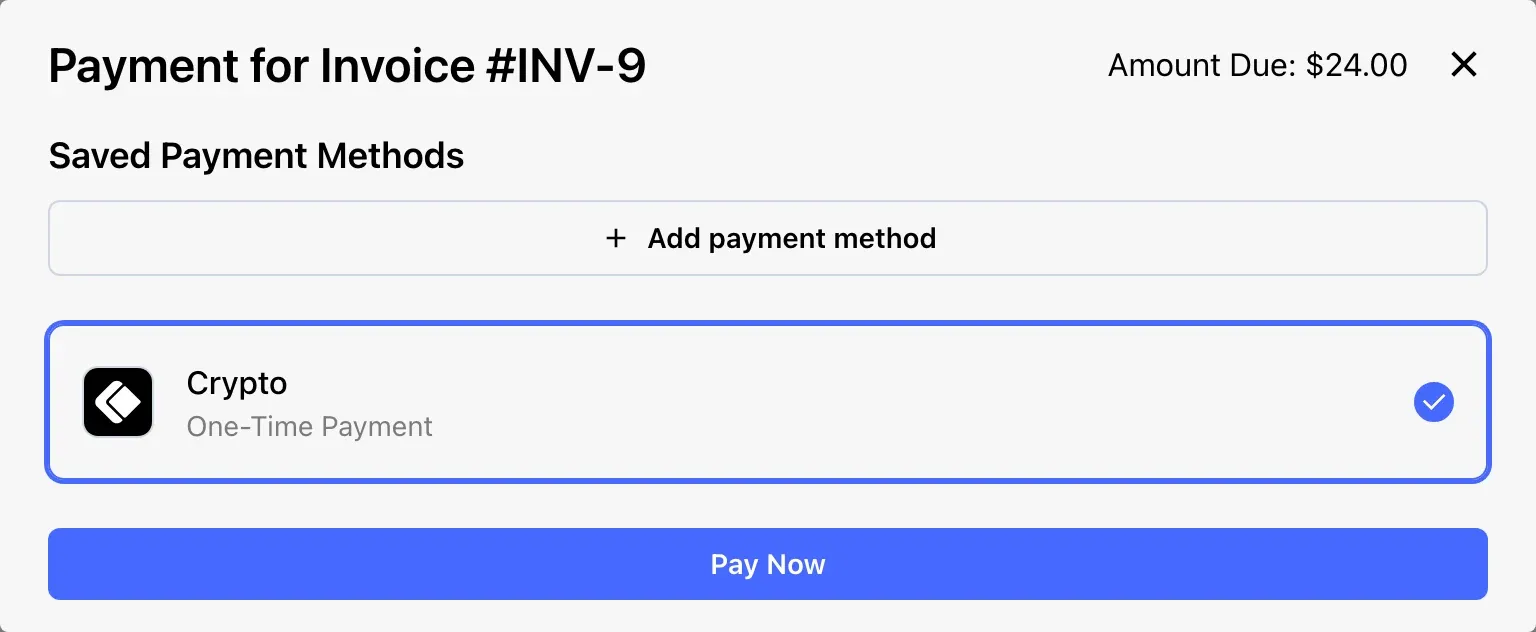
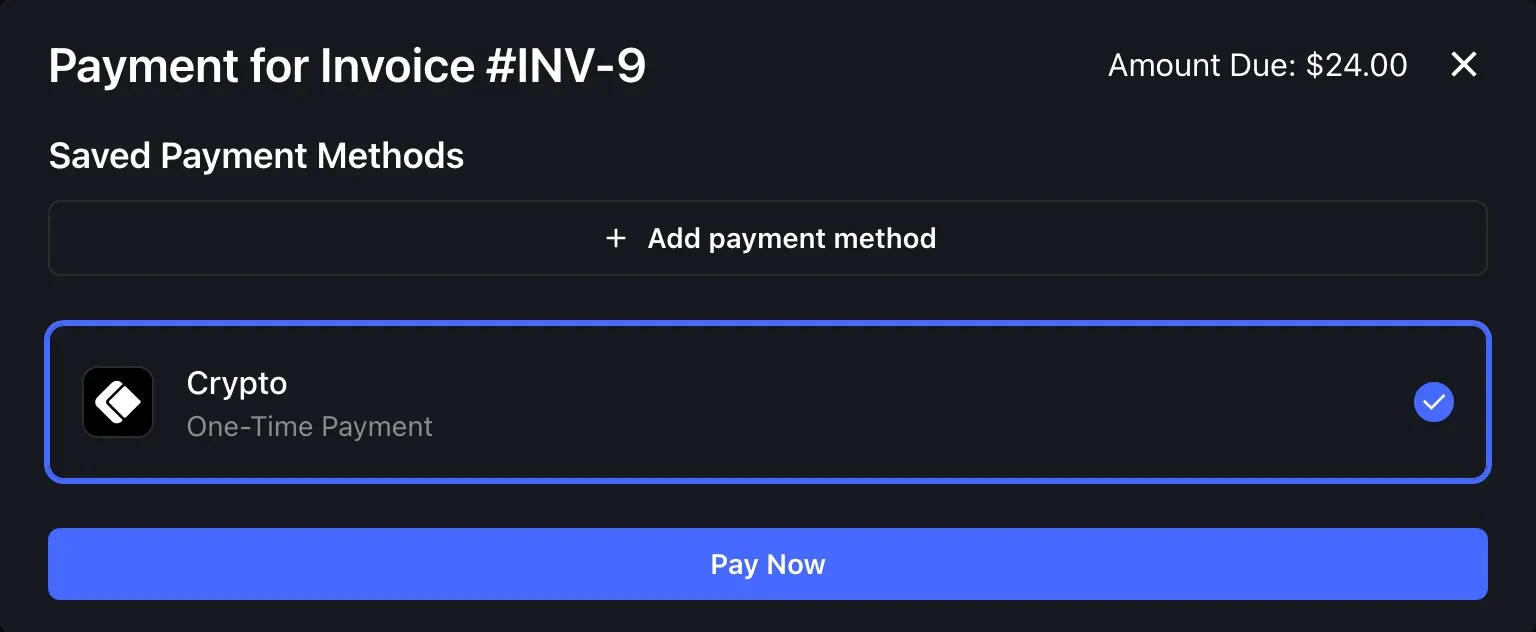
The customer opens an unpaid invoice and clicks Pay.
-
They choose the Cryptonly gateway (named Crypto here) and click Pay Now.
-
The extension creates a Cryptonly invoice for the amount still due and redirects the customer to the Cryptonly payment page, where they pick a coin and network and pay.
-
The customer returns to the invoice. It shows Payment Processing and checks every few seconds until the webhook arrives.
-
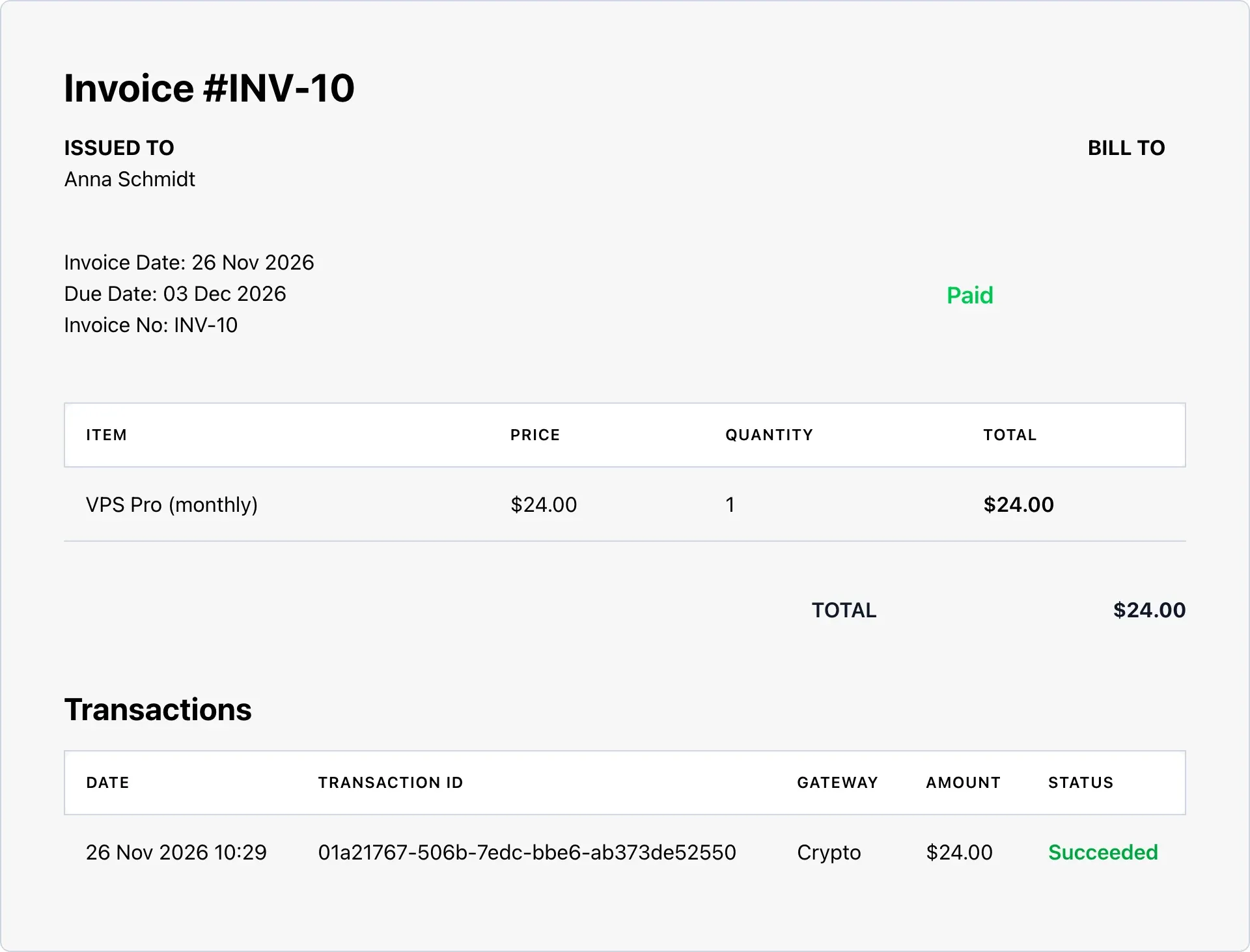
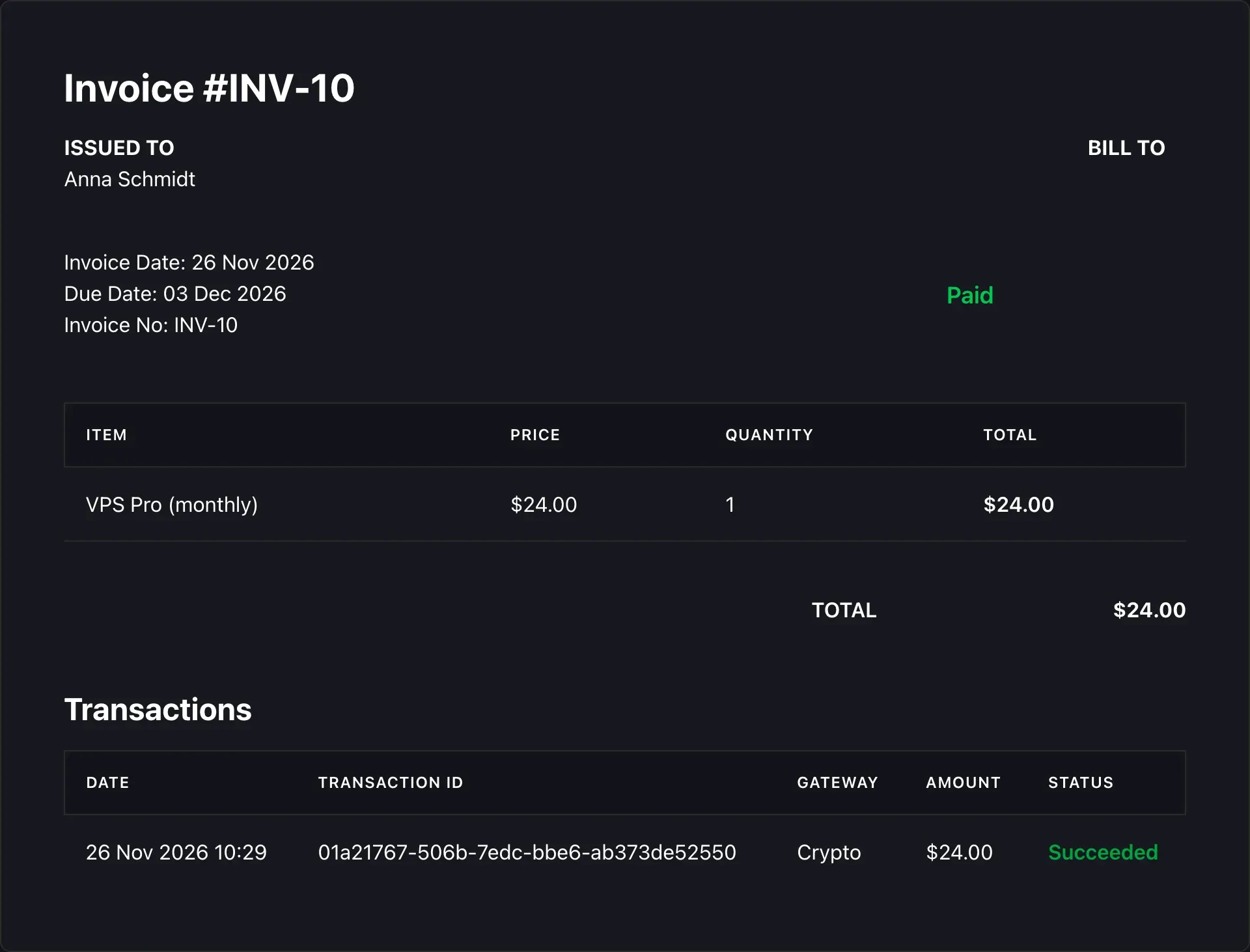
Paymenter records the payment and marks the invoice Paid. The transaction id is the Cryptonly invoice id, so you can find the payment in Cryptonly Accounts → History.
If the customer leaves before paying
The Paymenter invoice stays unpaid. Clicking Pay again returns the customer to the same Cryptonly payment page while it is still payable, and creates a new one after it expires or is cancelled.
How Paymenter invoices are updated
Section titled “How Paymenter invoices are updated”The extension listens for invoice.statusChanged webhooks. Returning from the hosted page does not mark the invoice paid.
| Cryptonly invoice status | Paymenter behavior |
|---|---|
created, processing | Nothing recorded |
suspended | A Processing transaction is added. A later paid completes it; failed, cancelled or expired marks it Failed |
paid, overpaid | The amount still due is recorded and Paymenter marks the invoice paid. An overpay is not stored as credit |
partially_paid | settlement.amountPaid is recorded. The invoice stays open for the rest |
expired, failed, cancelled | Nothing recorded. A later paid can still be applied |
A repeated webhook updates the same transaction instead of adding money twice. The next Pay after a partial payment charges only what is still due, with order id PAYMENTER-12-2, then PAYMENTER-12-3.
Overdue invoices can still be paid. Saved payment methods (billing agreements) and refunds are not supported, so a renewal invoice is paid with a new checkout.
Go live checklist
Section titled “Go live checklist”- Untick Sandbox mode
- Enter production API Key and Webhook Signing Key
- Confirm App URL is public HTTPS and reachable from the internet
- Confirm each invoice currency you use is offered by Cryptonly
- Place a small real payment and confirm the invoice is marked Paid
Troubleshooting
Section titled “Troubleshooting”Cryptonly is not offered on an invoice
- Confirm API Key and Webhook Signing Key are saved on the gateway.
- Check the invoice currency. The gateway is hidden for currencies Cryptonly does not price.
- The invoice must have something left to pay.
“Cryptonly needs this site on a public HTTPS address”
Settings → General → App URL is http://, localhost, or an IP address. Set it to your public HTTPS domain. The read-only Webhook URL on the gateway form shows the result.
“Invalid Cryptonly API key” when saving
- Sandbox mode must match the key: ticked for a sandbox key, unticked for a production key.
- The key needs the required scopes.
The invoice stays on Payment Processing
- Confirm Paymenter is reachable from the internet at App URL, and that a firewall, WAF, or bot protection does not block
POST /extensions/gateways/cryptonly/webhook. - Confirm the Webhook Signing Key matches the account’s Accounts → Settings → Security page. A wrong key makes Paymenter answer
401, and the payment is not recorded. - Look in the Paymenter log (
storage/logs) forCryptonly webhooklines, which show the status and what was recorded.
“This invoice already has a finished Cryptonly payment”
The Cryptonly invoice for this order id was already paid. Check the payment in Cryptonly Accounts → History and the invoice transactions in Paymenter before taking a new payment.
Frequently asked questions
Section titled “Frequently asked questions”Which cryptocurrencies are supported?
Cryptonly supports Bitcoin, Ethereum, USDT, USDC, and many other cryptocurrencies. Available assets depend on your Cryptonly account and enabled networks.
Do I need to configure webhooks in the Cryptonly Merchant Dashboard?
No. The extension sends the webhook URL with each invoice. You only enter the Webhook Signing Key so incoming webhooks can be verified.
Can customers pay part of an invoice?
Yes. A partial crypto payment is recorded on the invoice, and the customer pays the rest with a new checkout or another payment method.
Does it work with Paymenter account credit?
Yes. If credit covers part of the invoice, Cryptonly charges only the amount still due.
Related pages
Section titled “Related pages”Support
Section titled “Support”For help with your Cryptonly merchant account, credentials, or payment questions, write to support@cryptonly.net.