

Managing access & roles
Everyone in your organisation has one role. All roles can see the whole dashboard; the role decides what a person can change.
| Owner | Admin | Developer | Finance | Viewer | |
|---|---|---|---|---|---|
| View the dashboard | ✓ | ✓ | ✓ | ✓ | ✓ |
| Create invoices, deposits and accounts | ✓ | ✓ | ✓ | ✓ | |
| Withdraw, transfer and convert | ✓ | ✓ | ✓ | ||
| API keys and webhook signing keys | ✓ | ✓ | ✓ | ||
| Simulate payments, test and resend webhooks | ✓ | ✓ | ✓ | ||
| Organisation settings | ✓ | ✓ | |||
| Verification documents | ✓ | ✓ | |||
| Invite and manage members | ✓ | ✓ | |||
| Single sign-on and SCIM | ✓ | ✓ | |||
| Transfer ownership | ✓ |
- There is one Owner: the person who created the organisation. The role can’t be assigned, only transferred.
- Admins manage Developers, Finance members and Viewers, but not other Admins.
- Nobody can change their own role.
Inviting a member
Section titled “Inviting a member”- Go to Members and click Invite member.
- Enter the email address and pick a role.
- Choose when the link expires (1, 7, 14 or 30 days) and click Send invitation.
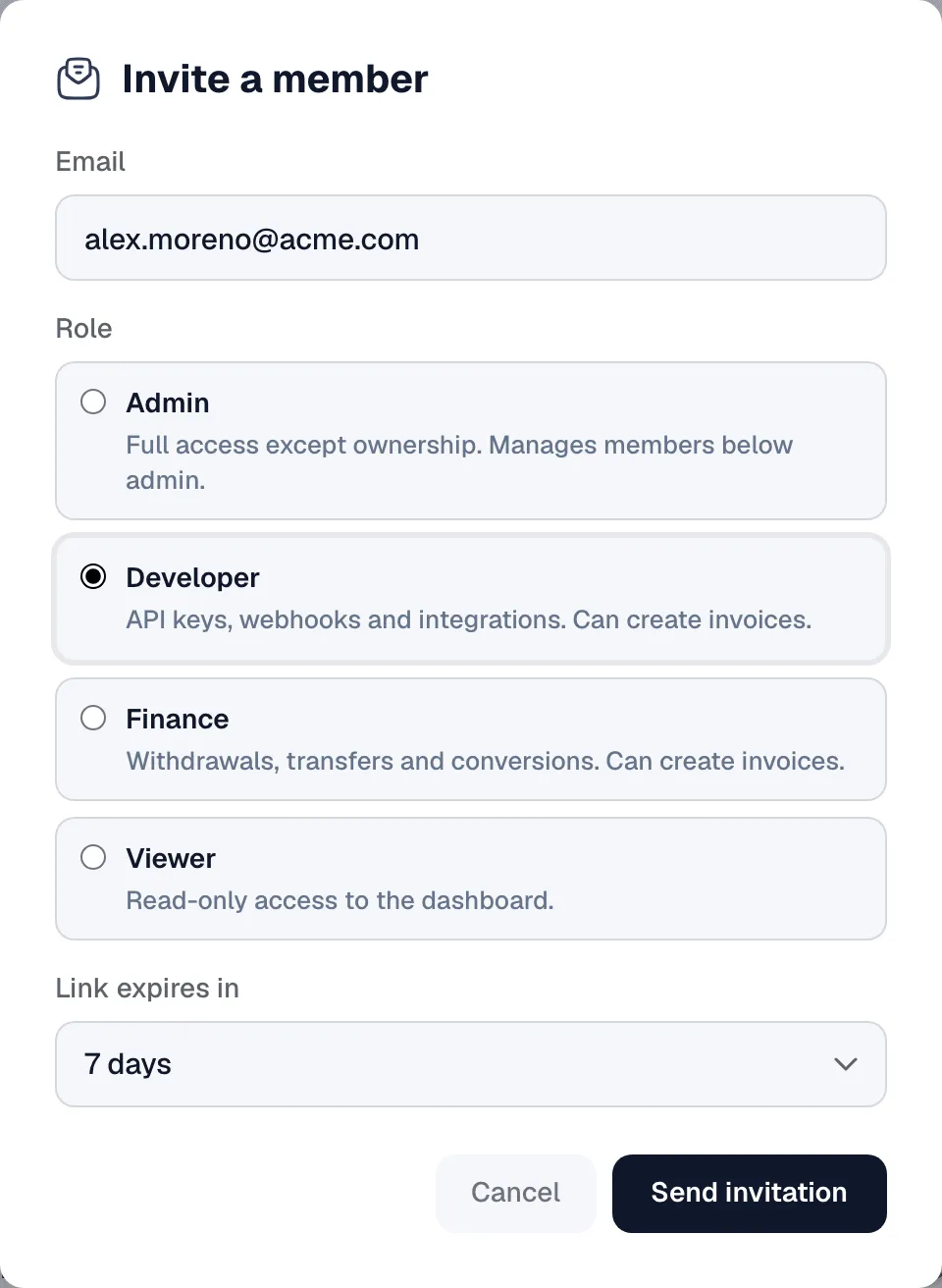
The invitee gets an email with an Accept invitation button. They set a password, or continue with Google or GitHub using the invited address.
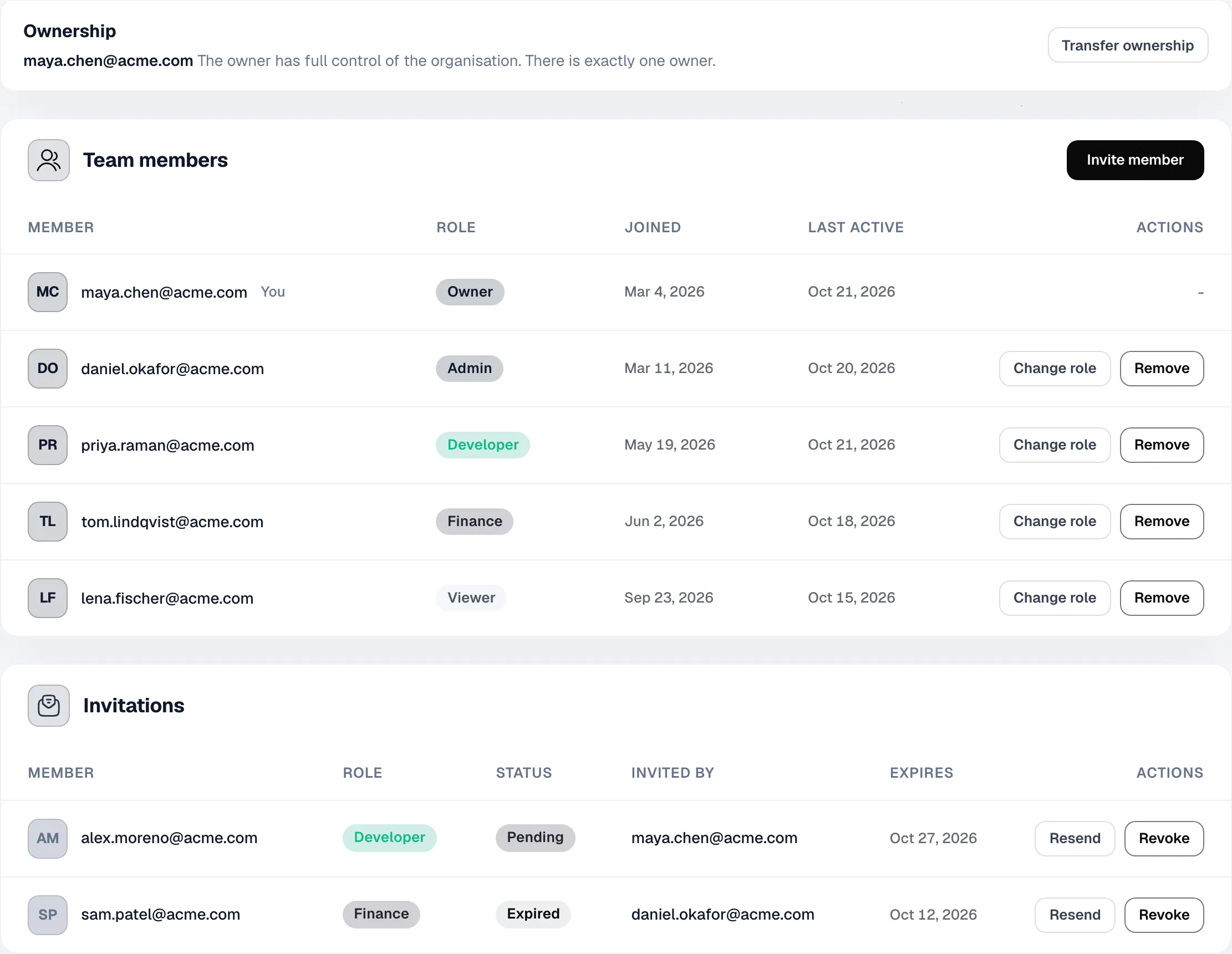
Open invitations are listed under Invitations. Resend emails a new link valid for 7 days and disables the old one; Revoke disables the link immediately. You can send up to 10 invitations an hour, and one address can only have one open invitation.
Changing roles and removing members
Section titled “Changing roles and removing members”Use Change role or Remove on a member’s row. A removed member loses access immediately and is signed out on all devices. You can invite them again later.
To leave an organisation yourself, click Leave organisation on your own row. The owner has to transfer ownership first.
Transferring ownership
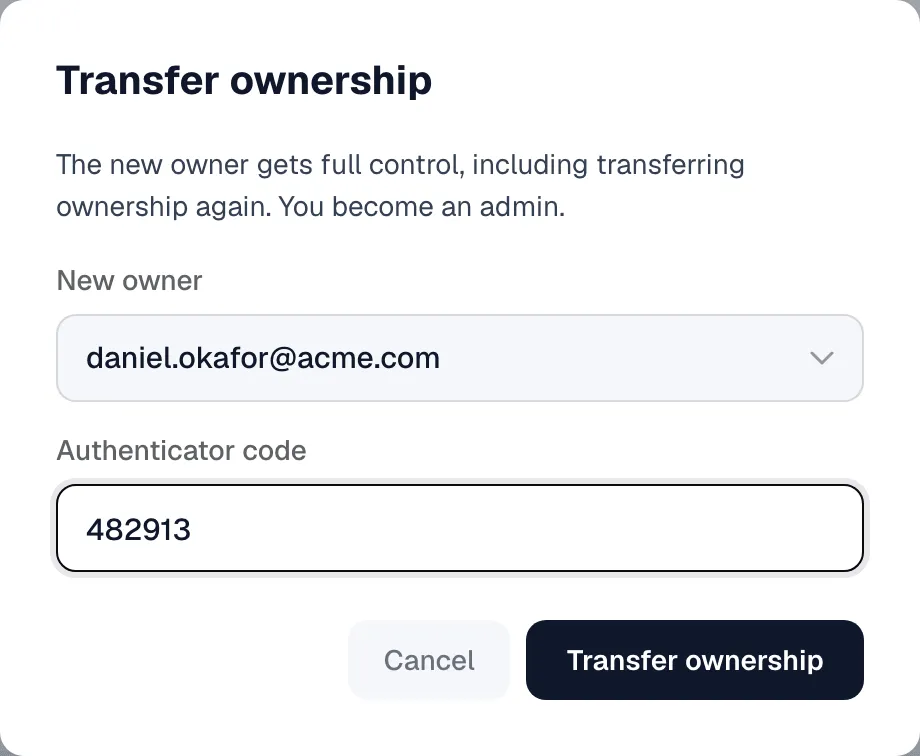
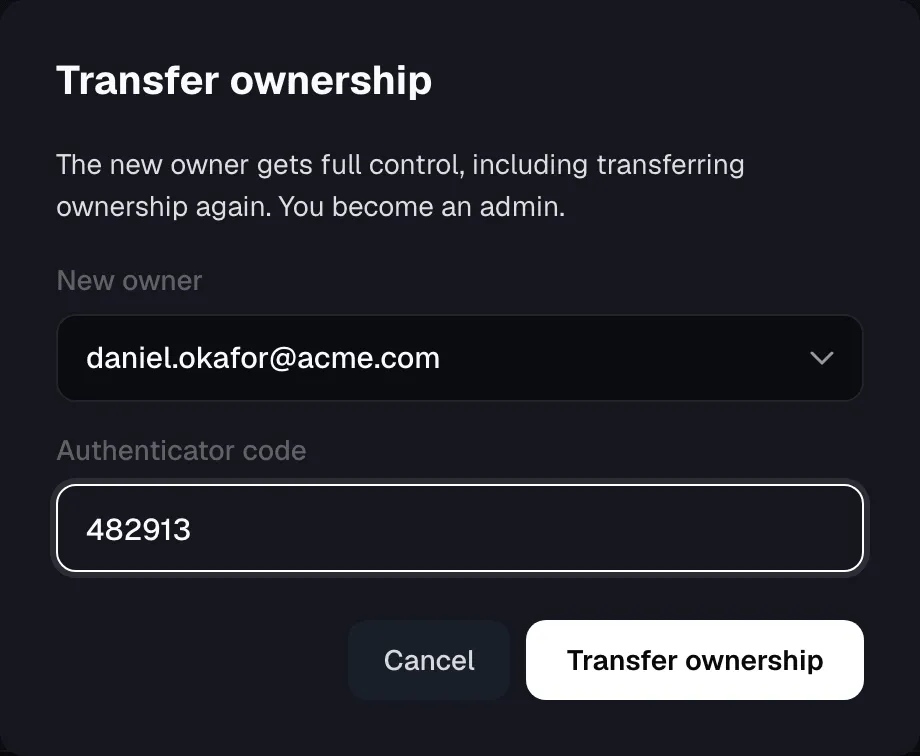
Section titled “Transferring ownership”Ownership can only go to an Admin. Click Transfer ownership, choose the new owner and confirm with your authenticator code, or with your password if two-factor authentication is off. You become an Admin, and both of you get an email.
If you only sign in with Google or GitHub, turn on two-factor authentication first.
Securing your account
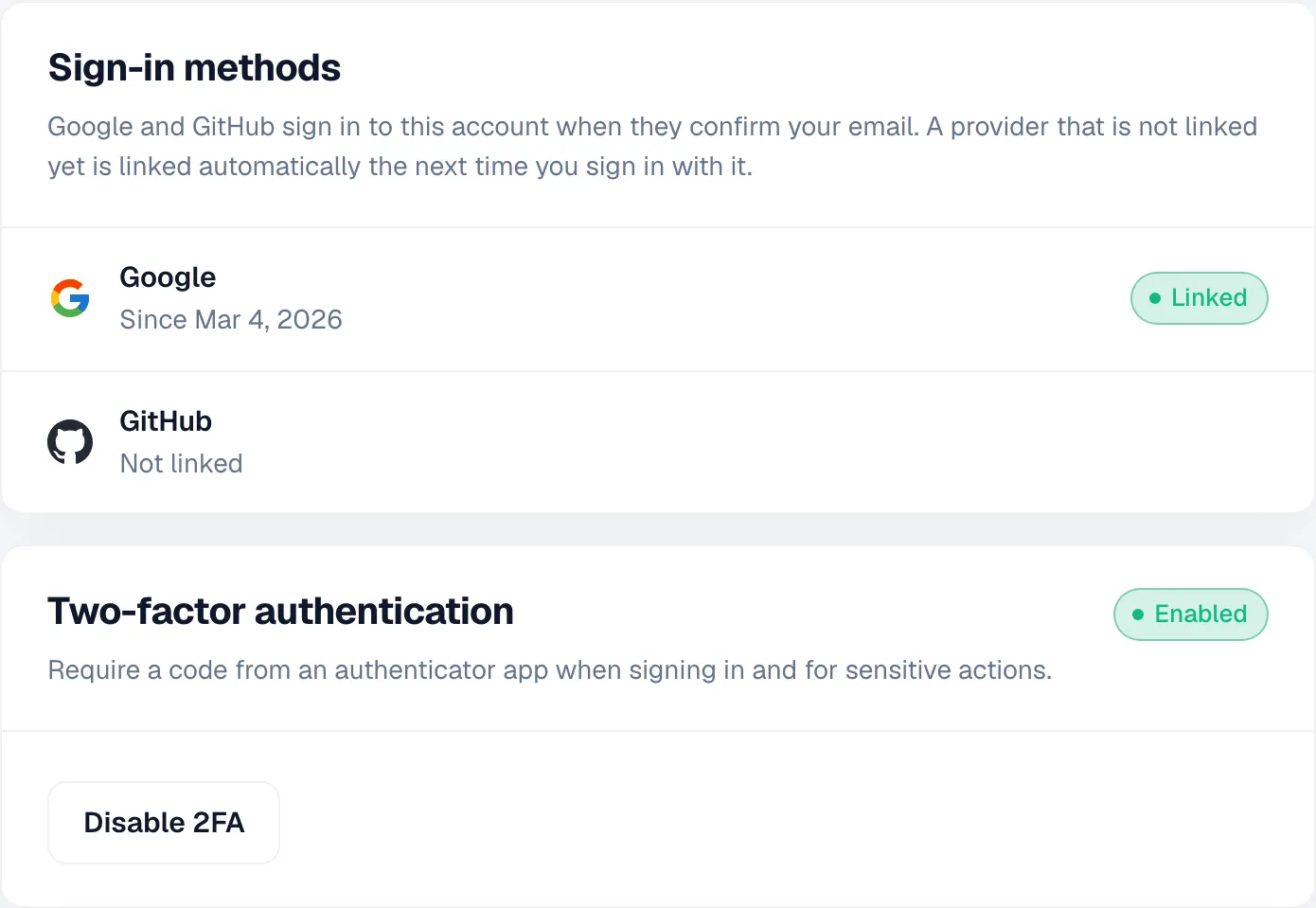
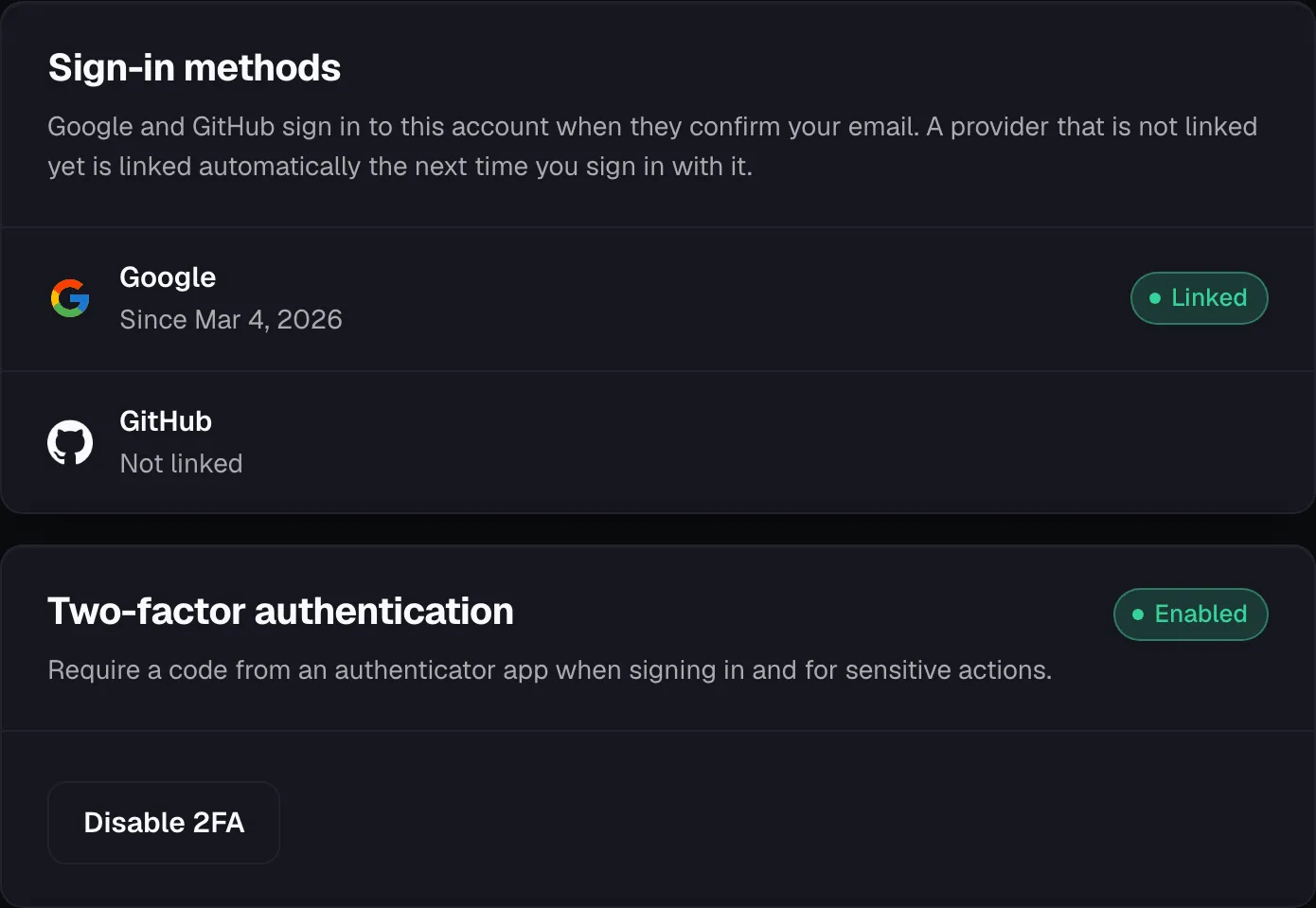
Section titled “Securing your account”Each person manages their own sign-in in Settings → Privacy & security:
- Two-factor authentication. Scan the QR code with an authenticator app and enter a code. Turning it on signs you out everywhere, so sign in again with a code. Without it, password sign-in asks for a code sent by email.
- Sign-in methods. Google and GitHub link to your account the first time you use them with the same email address.
- Password. Send reset link emails a link that is valid for 15 minutes.
- Active sessions. See where you are signed in and sign out other devices.
To have your team sign in through your company’s identity provider instead, see Setting up SSO.