

Setting up SSO
With single sign-on (SSO), people with your company email addresses sign in to the Merchant Dashboard through your identity provider. You can also create their accounts on first sign-in, make SSO mandatory, and sync members with SCIM.
The Owner and Admins set it up in Settings → Single sign-on. You also need admin access to your identity provider and to your domain’s DNS.
Supported identity providers
Section titled “Supported identity providers”
 OktaOpenID Connect or SAML 2.0
 Microsoft Entra IDOpenID Connect or SAML 2.0
 Google WorkspaceSAML 2.0 or OpenID Connect
- Any other providerOpenID Connect or SAML 2.0
The Google and GitHub buttons on the sign-in page are for individual accounts and work without any setup. SSO is configured for your whole organisation.
Setting up SSO
Section titled “Setting up SSO”-
Verify your domain
Enter your email domain, for example
acme.com, and click Add domain. Add the TXT record shown to your DNS, then click Check DNS.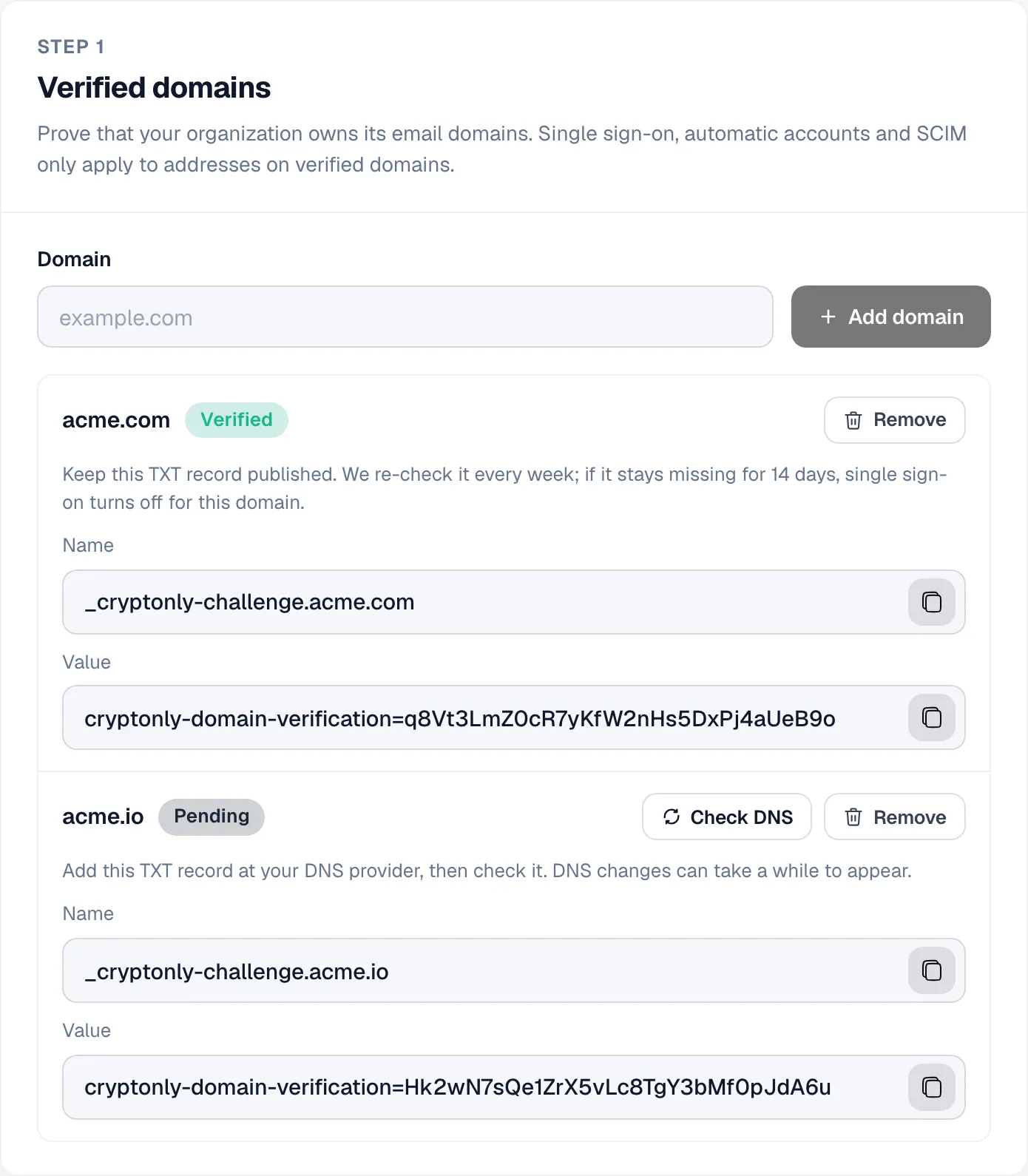
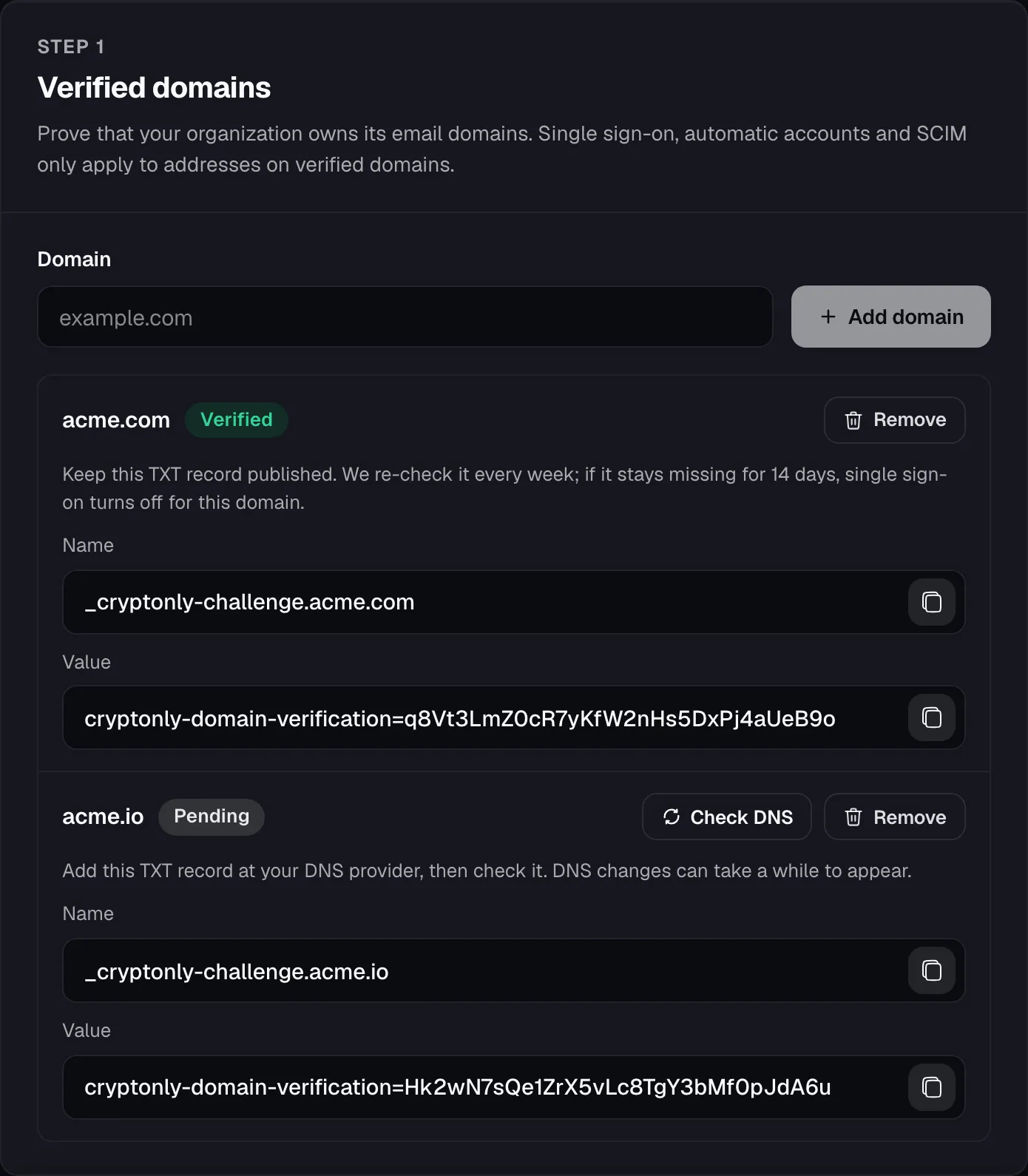
Leave the record in place. It is checked every week, and if it is missing for 14 days, SSO turns off for that domain. Public email domains such as gmail.com can’t be verified.
-
Create an app in your identity provider
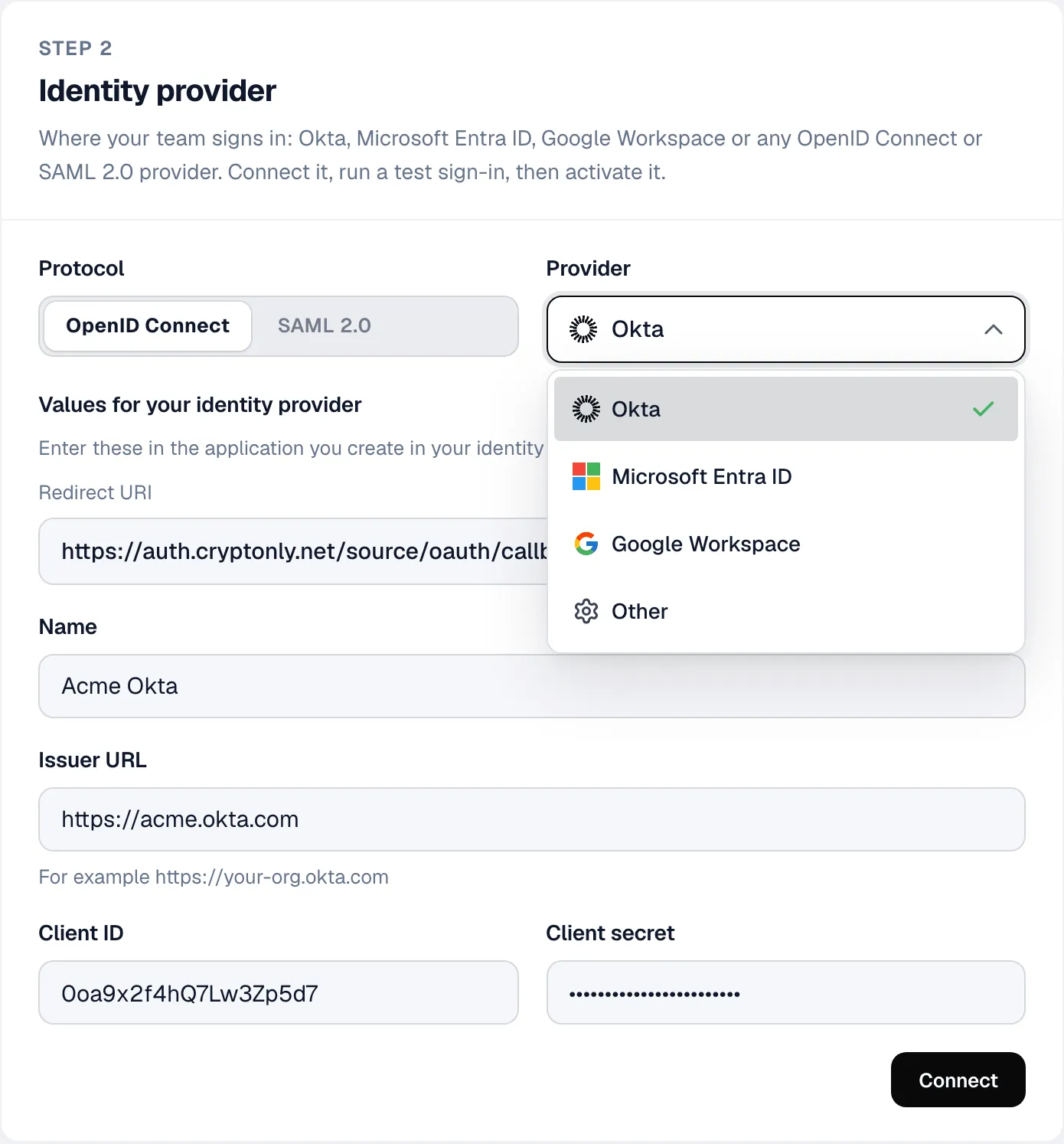
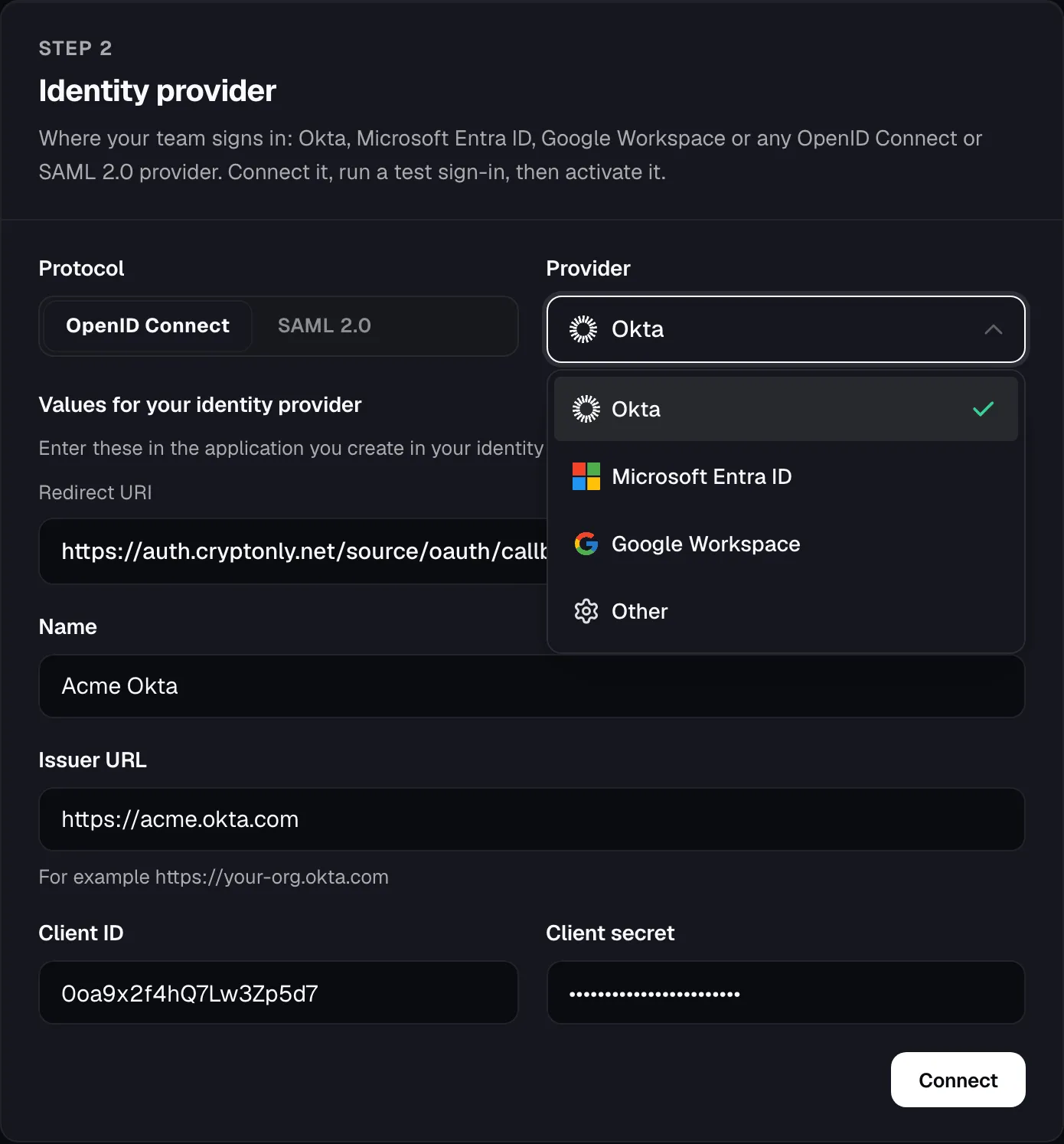
Under Identity provider, pick the protocol and your provider. The values your identity provider needs are shown right away: the Redirect URI for OpenID Connect, or the ACS URL and Entity ID for SAML 2.0. Use them to create the app, as described in Provider notes, and assign it to the people who should have access.
-
Connect it
Give the connection a name and paste the details from your identity provider: Issuer URL, Client ID and Client secret for OpenID Connect, or Single sign-on URL and Signing certificate (PEM) for SAML 2.0. Click Connect.
-
Test and activate
Click Test sign-in and sign in with an account on a verified domain. Once the test succeeds, click Activate.
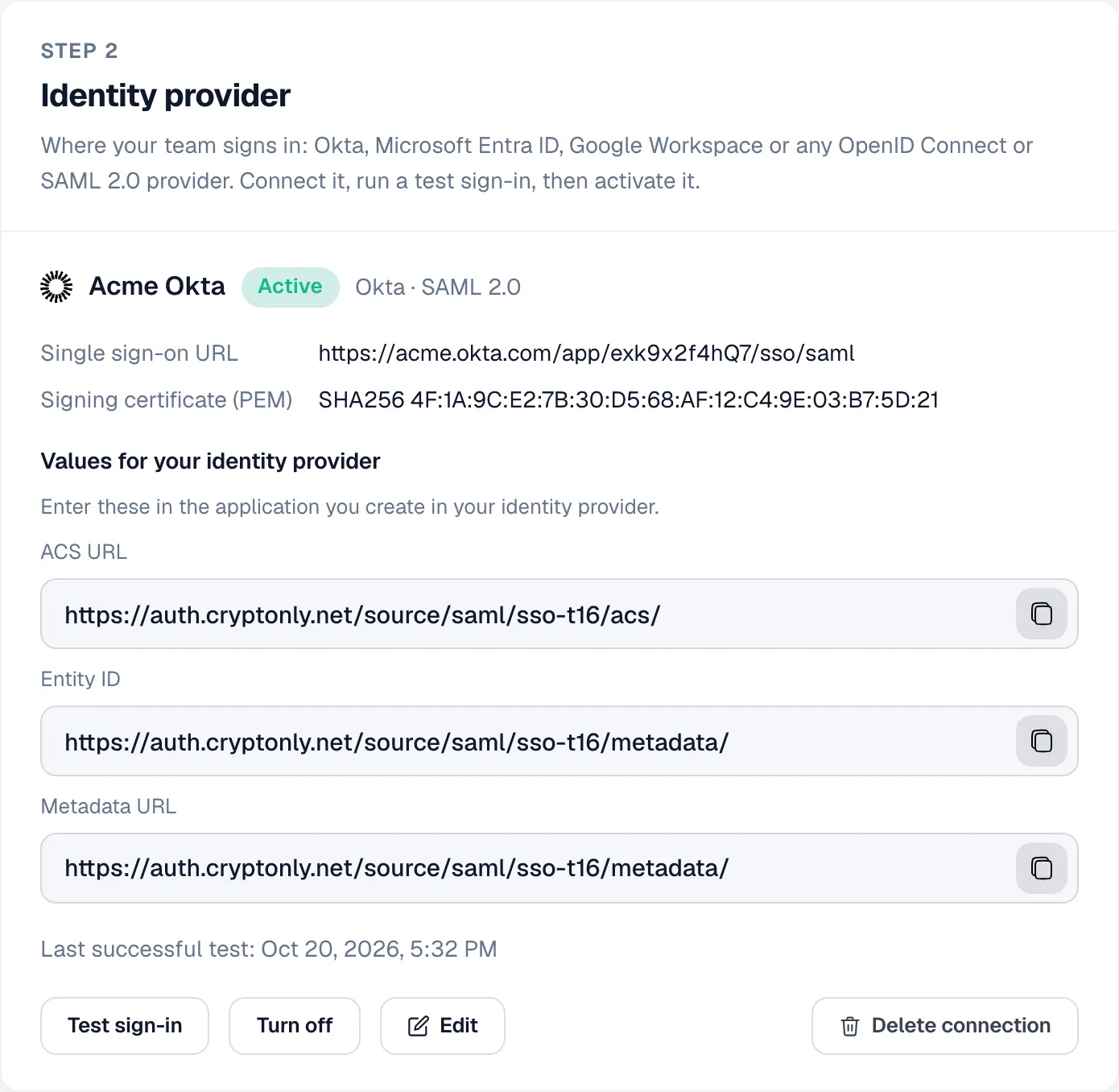
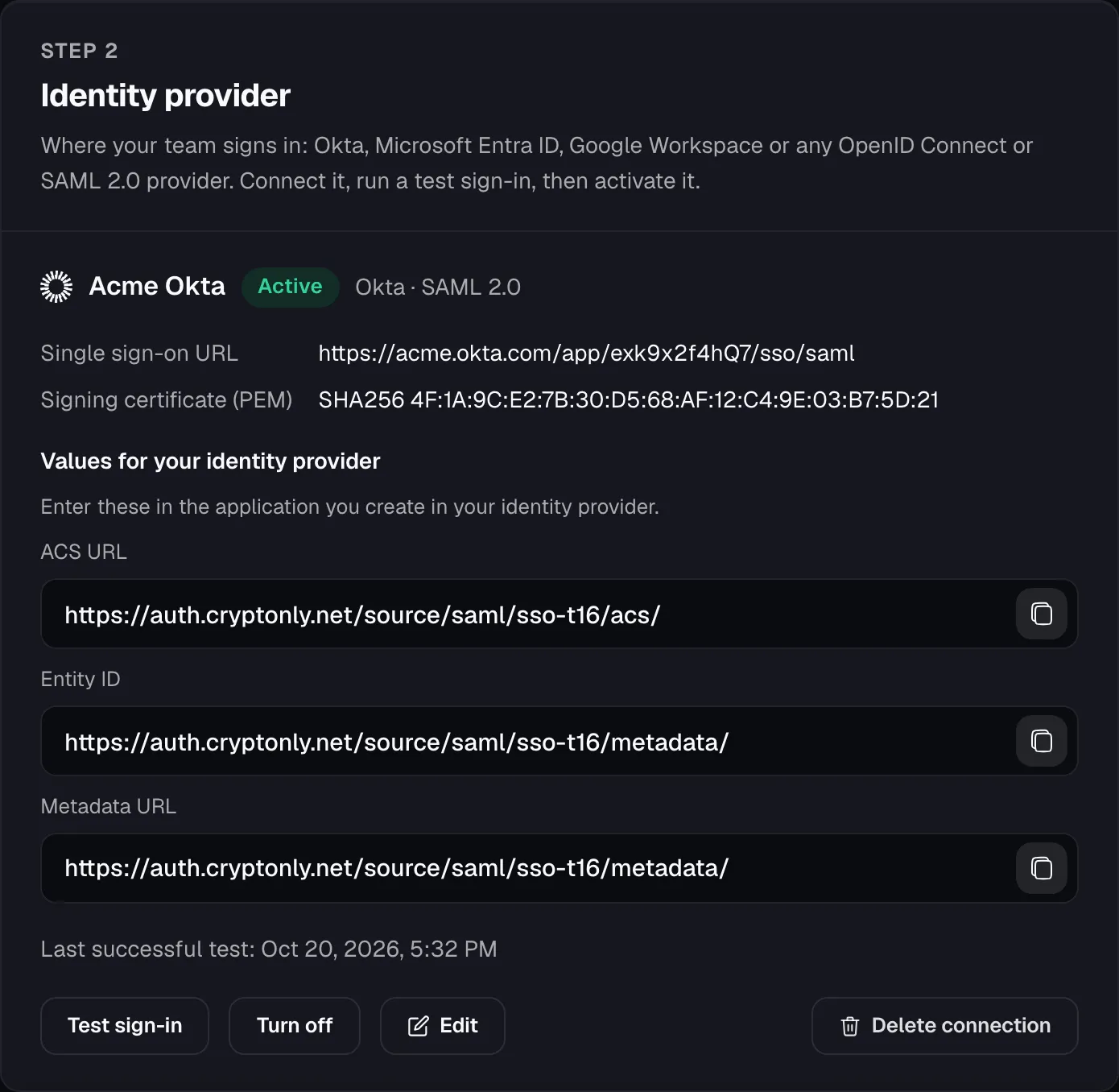
Editing an active connection turns it off until a new test sign-in succeeds.
Provider notes
Section titled “Provider notes”SAML apps must send the user’s email address as the Name ID and sign their assertions. Sign-in starts from Cryptonly; signing in from the identity provider’s app dashboard isn’t supported.
- OpenID Connect: create an OIDC – OpenID Connect app of type Web Application and add the Redirect URI as a sign-in redirect URI. The Issuer URL is your Okta domain, such as
https://acme.okta.com. - SAML 2.0: use the ACS URL as Single sign-on URL, the Entity ID as Audience URI, and set Name ID format to
EmailAddress.
- OpenID Connect: add an App registration with the Redirect URI as a Web redirect URI, then create a client secret. The Issuer URL is
https://login.microsoftonline.com/<tenant-id>/v2.0; shared endpoints such as/commonare rejected. - SAML 2.0: add an Enterprise application, use the Entity ID as Identifier and the ACS URL as Reply URL. If user principal names differ from email addresses, set Unique User Identifier to
user.mail.
- SAML 2.0 (recommended): in the Google Admin console, open Apps → Web and mobile apps → Add custom SAML app. Enter the ACS URL and Entity ID, set Name ID to Primary email, then turn the app on for your users.
- OpenID Connect: create an OAuth client of type Web application in Google Cloud with the Redirect URI. The issuer is filled in for you. Only Workspace accounts on your verified domains can sign in; personal Google accounts are refused.
- OpenID Connect: the Issuer URL must serve
/.well-known/openid-configuration. - SAML 2.0: if your provider imports metadata, give it the Metadata URL.
Sign-in policy
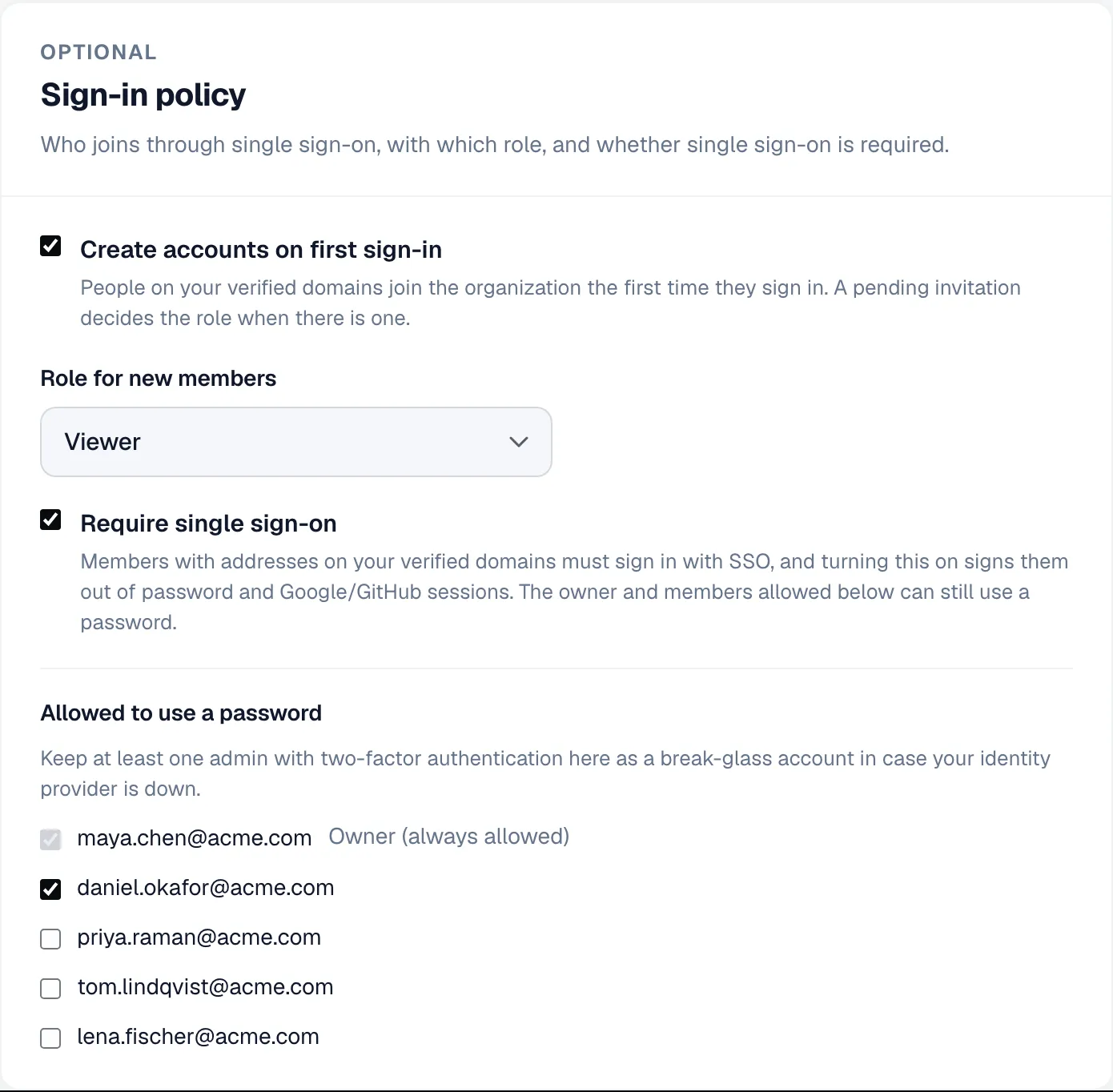
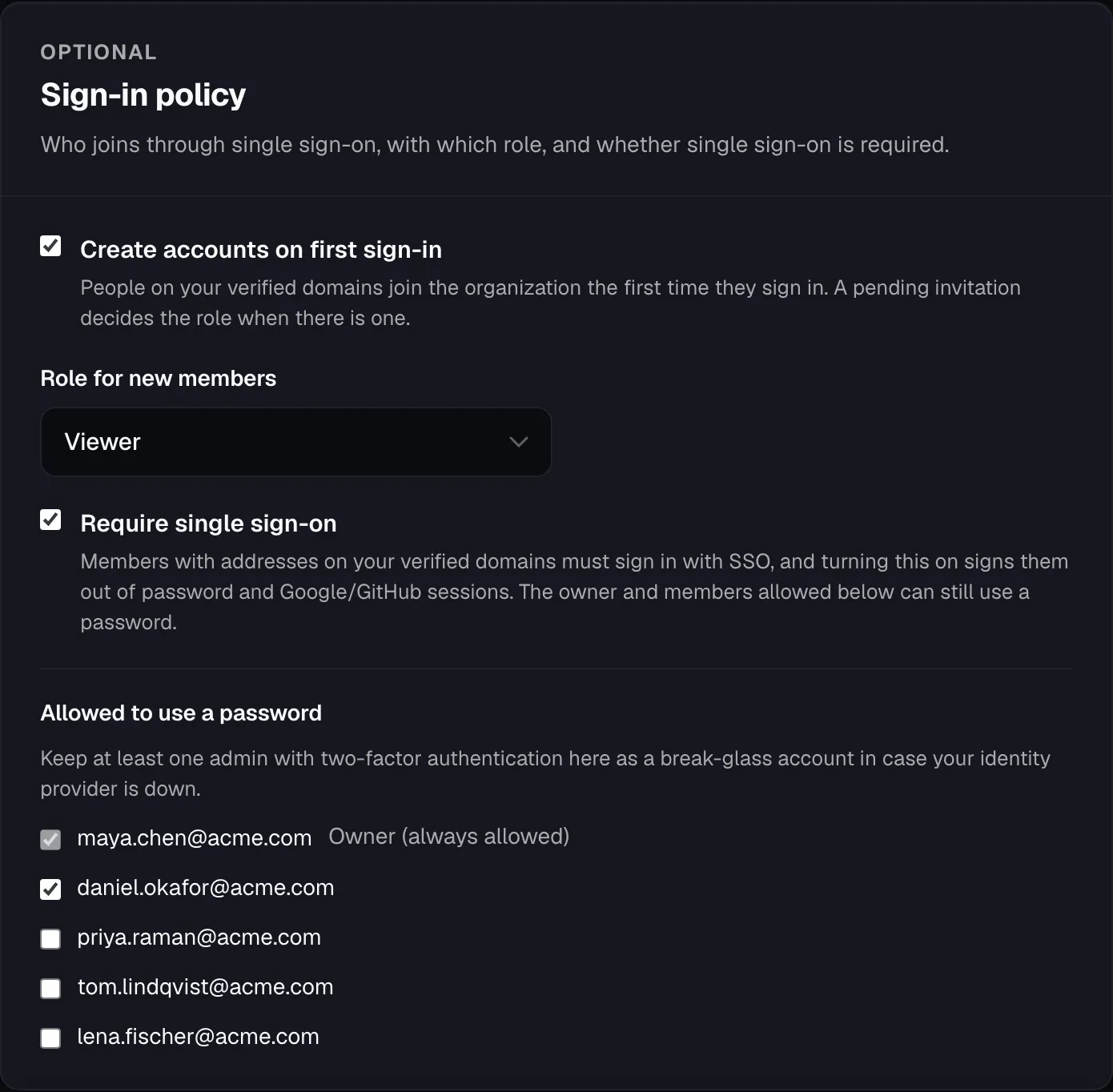
Section titled “Sign-in policy”Once a connection exists, Sign-in policy controls who joins and how:
- Create accounts on first sign-in. People on your verified domains join the organisation the first time they sign in, with the Role for new members you choose: Viewer, Developer or Finance. A pending invitation’s role takes priority. When this is off, only invited people can join.
- Require single sign-on. Members on your verified domains must sign in through SSO, and their password and Google or GitHub sessions end. This option is available once the connection is active.
- Allowed to use a password. Members who can still use a password while SSO is required. The owner always can.
User provisioning (SCIM)
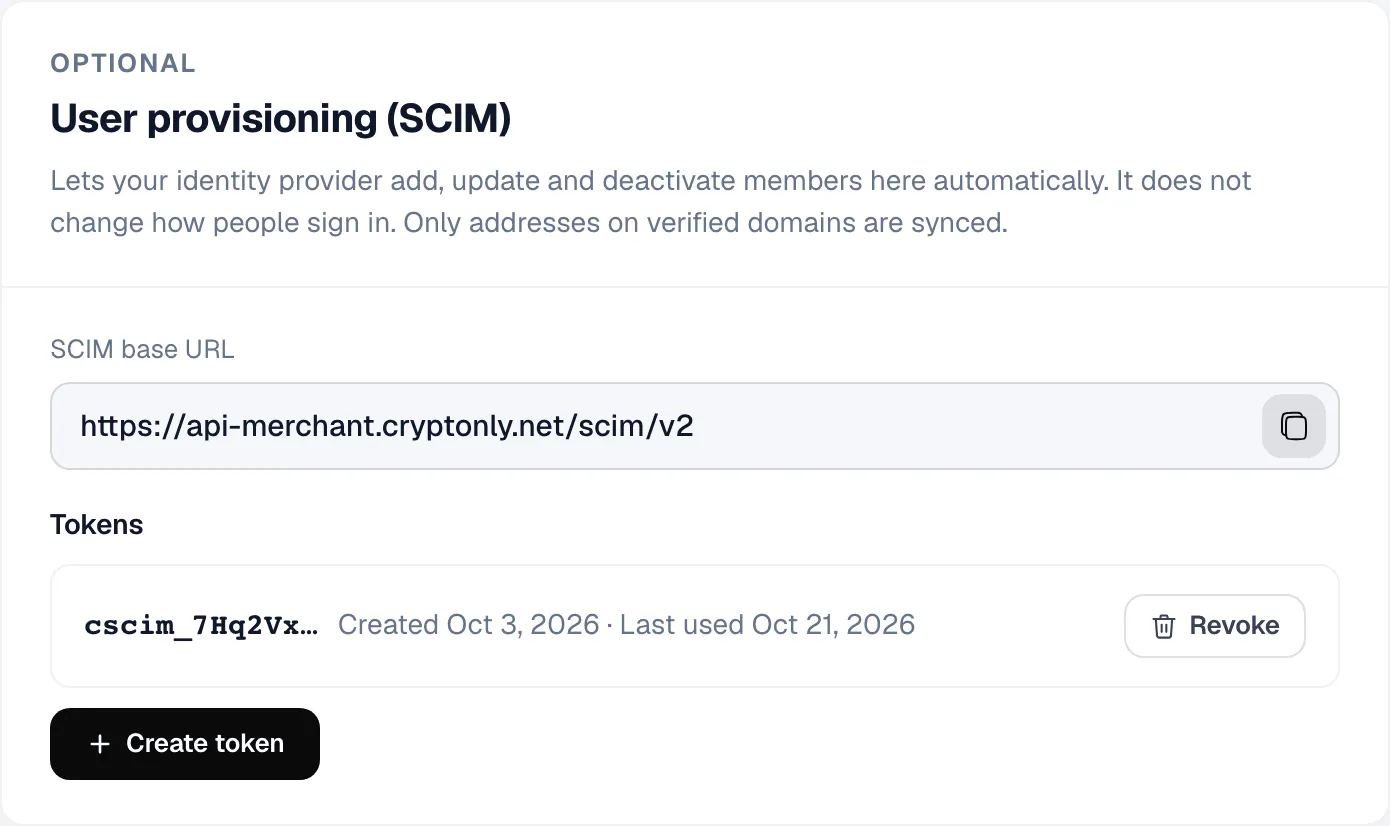
Section titled “User provisioning (SCIM)”SCIM lets your identity provider add, update and deactivate members automatically. It doesn’t change how people sign in.
Click Create token and copy it; it is shown only once. In your identity provider’s provisioning settings, enter the SCIM base URL from the card, and paste the token as the bearer token.
- Only users are synced, not groups. New members get their invitation’s role, or the Role for new members.
- Only addresses on verified domains are synced.
- Deactivating a user in your identity provider signs them out of Cryptonly. The owner can’t be deactivated through SCIM.
- Up to 5 tokens can be active. To rotate, create a new token, update your identity provider, then revoke the old one.
How your team signs in
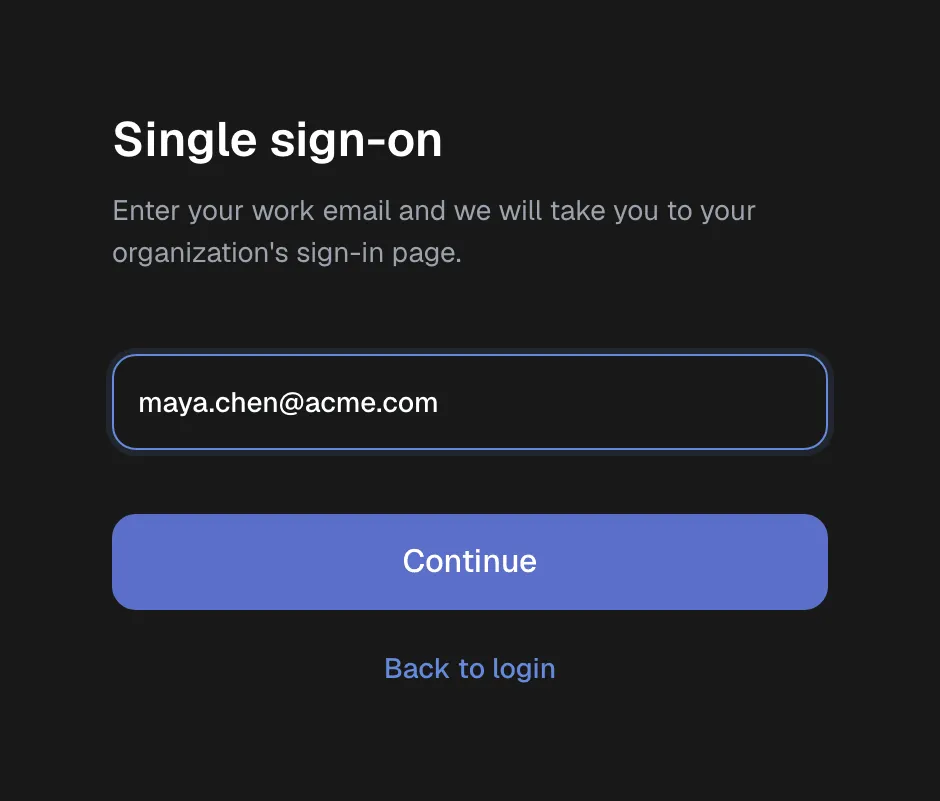
Section titled “How your team signs in”On the sign-in page, members click Sign in with SSO and enter their work email, which takes them to your identity provider. Your identity provider handles multi-factor authentication. When SSO is required, someone who tries a password is sent to SSO instead.
Troubleshooting
Section titled “Troubleshooting”| Message | What to check |
|---|---|
| Single sign-on is not set up for this email domain. | The domain is not verified, or the connection is not active. |
| Your email domain is not verified for this organization’s single sign-on. | Your identity provider returned an email on another domain. Check the user’s email there, or verify that domain. With Google Workspace, this is also shown for personal Google accounts. |
| You do not have access to this organization yet. | Invite the person, or turn on Create accounts on first sign-in. |
| This account belongs to another organization. | The email is already used in another Cryptonly organisation. Contact support. |
| Single sign-on is not available right now. | The member’s account is deactivated, or already linked to a different account in your identity provider. |
Turning SSO off
Section titled “Turning SSO off”- Turn off stops SSO sign-in and also turns off Require single sign-on.
- Delete connection removes it. Members who signed in through SSO then use a password or Google or GitHub. To switch between OpenID Connect and SAML, delete the connection and connect again.
- Removing a domain stops SSO for addresses on it.